Arsi CRM — User Guide
A step-by-step manual for signing in, managing companies and contacts, running leads through to won deals, tracking tasks, and reading the reports — for every role on the Arsi CRM platform, sales rep through admin.
1. Welcome
Arsi CRM is a small-business CRM built for a fictional company, Brightfield Business Solutions — companies and contacts, a lead pipeline with real conversion logic, a deal pipeline board, tasks, an activity timeline, and dashboards/reports. This guide walks through the platform exactly as a sales rep, manager, or admin would use it: the web app first, and the underlying API for anyone integrating or testing programmatically.
2. Two Ways to Use This CRM
There's a real, working web application in front of this platform — you don't need to write any code or run any HTTP requests by hand to try it out.
Web App Recommended
Open https://demo.arsiindiainfo.com in a browser, sign in with a demo account (§4), and click through the Dashboard, Companies, Leads, Deals, Tasks, and Reports screens — plus the Team and Audit Log screens if you're an admin. §5 breaks down exactly which screens each role sees.
Raw API / Swagger
Everything the web app does, it does by calling the same JSON API documented in §3 onward. Use this if you're integrating programmatically, testing with curl/Postman, or want to see exact request/response shapes via the interactive Swagger UI.
3. Web App & API Reference
Everything is reachable from one public API base URL — there is exactly one entry point into the platform.
| Resource | URL |
|---|---|
| Web app | https://demo.arsiindiainfo.com |
| API base URL | https://demo.arsiindiainfo.com/api/v1 |
| Interactive Swagger docs | GET/api/docs (non-production environments only) |
The fastest way to explore the API is the Swagger UI — it lets you authenticate once and try every endpoint from the browser. This guide covers the same endpoints with raw HTTP examples for anyone integrating programmatically.
Response envelope
Every response — success or failure — is wrapped the same way, so client code only ever needs one shape to check:
// success
{
  "success": true,
  "data": { /* the actual result */ }
}

// paginated list responses also include a "meta" block
{
  "success": true,
  "data": [ /* rows */ ],
  "meta": { "page": 1, "limit": 20, "total": 15, "totalPages": 1 }
}

// failure
{
  "success": false,
  "error": { "code": "VALIDATION_ERROR", "message": "..." }
}
4. Demo Accounts
The DemoSeeder seeds a full Brightfield sales org — one admin, two managers, four reps — so you can try every role immediately without inviting your own users. Every account shares the same password:
| Role | Name | Password | |
|---|---|---|---|
| Admin | Ava Admin | admin@brightfield.test | Passw0rd! |
| Sales Manager | Priya Manager | priya.manager@brightfield.test | |
| Sales Manager | Rohan Verma | rohan.manager@brightfield.test | |
| Sales Rep | Arjun Rep (reports to Priya) | arjun.rep@brightfield.test | |
| Sales Rep | Meera Rep (no manager) | meera.rep@brightfield.test | |
| Sales Rep | Karan Malhotra (reports to Rohan) | karan.rep@brightfield.test | |
| Sales Rep | Sana Iyer (reports to Rohan) | sana.rep@brightfield.test |
5. Which Screen Is For Which Role
The web app shows the same core navigation to every signed-in user. Everything a Sales Rep can do, a Sales Manager and Admin can also do — admins additionally see two extra screens under "Admin" in the sidebar.
| Screen | Rep | Manager | Admin | What it's for |
|---|---|---|---|---|
| Dashboard | ✅ | ✅ | ✅ | KPI cards and monthly revenue trend (§8); managers/admins also see a leaderboard. |
| Companies | ✅ own only | ✅ own + reports' | ✅ all | Accounts, with tabbed Overview/Contacts/Deals/Activity/Notes (§9). |
| Contacts | ✅ own only | ✅ own + reports' | ✅ all | People at each company (§9). |
| Leads | ✅ own only | ✅ own + reports' | ✅ all | New/Contacted/Qualified/Disqualified board (§10). |
| Deals | ✅ own only | ✅ own + reports' | ✅ all | Pipeline board through to Won/Lost (§12). |
| Tasks | ✅ own only | ✅ own only | ✅ own only | Your own open tasks, due soonest first (§13). |
| Reports | ✅ no leaderboard | ✅ | ✅ | Pipeline funnel, revenue trend, salesperson leaderboard (§15). |
| Team | — | — | ✅ | Invite, edit role/status, and disable users (§16). |
| Audit Log | — | — | ✅ | Every sensitive action, platform-wide (§17). |
6. Signing In
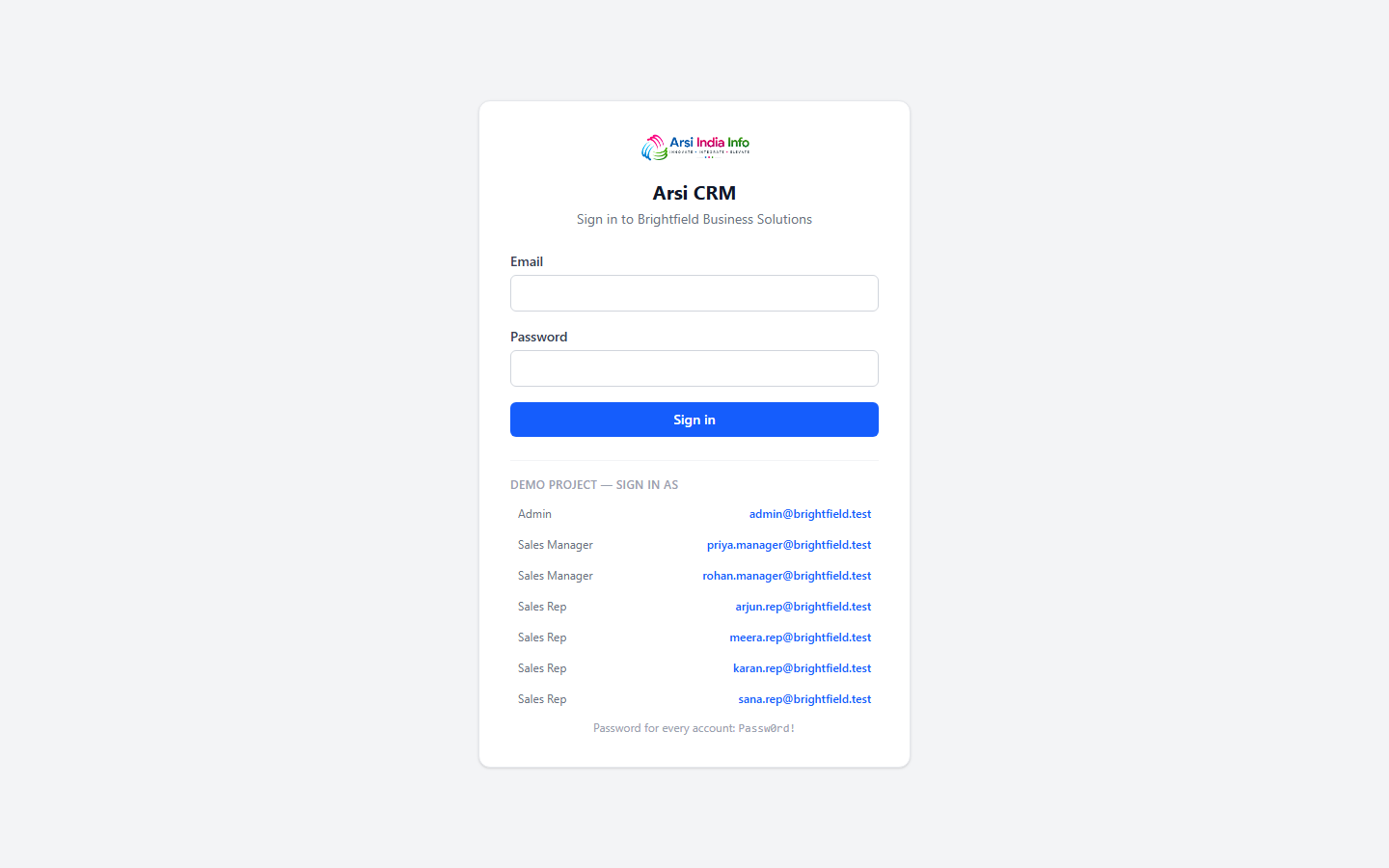
The sign-in page is the first thing you see. It lists every demo account (§4) with a one-click fill so you don't need to retype credentials while exploring.
Via the Web App
- Open https://demo.arsiindiainfo.com — you land on the sign-in page.
- Click any row under "Demo project — sign in as" to auto-fill that account's email and password, or type your own.
- Tick the reCAPTCHA checkbox — see the callout below.
- Click Sign in. You land on the Dashboard (§8).
POST /auth/login is the only endpoint anyone can call
without already being logged in, which makes it the obvious target
for scripted/credential-stuffing bot traffic. The login form requires
a Google reCAPTCHA v2 check before the request is accepted —
RecaptchaFilter verifies the token server-side against
Google on every login call, so a scripted client can't just skip the
widget and post directly to the API either.
Via the API
The same reCAPTCHA check applies here too — recaptchaToken is a required field. In the web app it's filled in automatically once you complete the checkbox; calling the API directly means solving the widget yourself (e.g. via Swagger, which renders the same checkbox) and passing along the token you receive.
POST https://demo.arsiindiainfo.com/api/v1/auth/login
Content-Type: application/json

{
  "email": "admin@brightfield.test",
  "password": "Passw0rd!",
  "recaptchaToken": "03AGdBq27..."
}
A successful login returns both tokens, ready to use:
{
  "success": true,
  "data": {
    "accessToken": "eyJhbGciOi...",
    "refreshToken": "9ba3b6cf3c...",
    "user": {
      "id": 5,
      "name": "Ava Admin",
      "email": "admin@brightfield.test",
      "role": "ADMIN",
      "status": "ACTIVE"
    }
  }
}
Copy the accessToken and send it on every subsequent request as a bearer token:
Authorization: Bearer eyJhbGciOi...
7. Your Session & Signing Out
Access tokens are short-lived (15 minutes). The web app quietly exchanges the refreshToken for a new pair in the background whenever a request comes back 401 — you won't see a token expire while you're using the app.
Refreshing manually (API)
POST https://demo.arsiindiainfo.com/api/v1/auth/refresh
Content-Type: application/json

{ "refreshToken": "9ba3b6cf3c..." }
Via the Web App: click Sign out in the top-right corner of the header. Via the API: POST/auth/logout with { "refreshToken": "..." } and your current access token — this revokes the refresh token so it can no longer be used.
Via the Web App: click your name in the top-right corner, or use GET/users/me via the API, to see your own profile — id, name, email, role, and status.
8. The Dashboard
The Dashboard is the landing page after sign-in — a snapshot of the numbers that matter, scoped to what you're allowed to see (§18).
Via the Web App: five KPI cards (Customers, New Leads, Conversion Rate, Open Deals, Revenue MTD), a 12-month revenue trend bar chart, and — for Managers and Admins only — a Top Salespeople leaderboard.
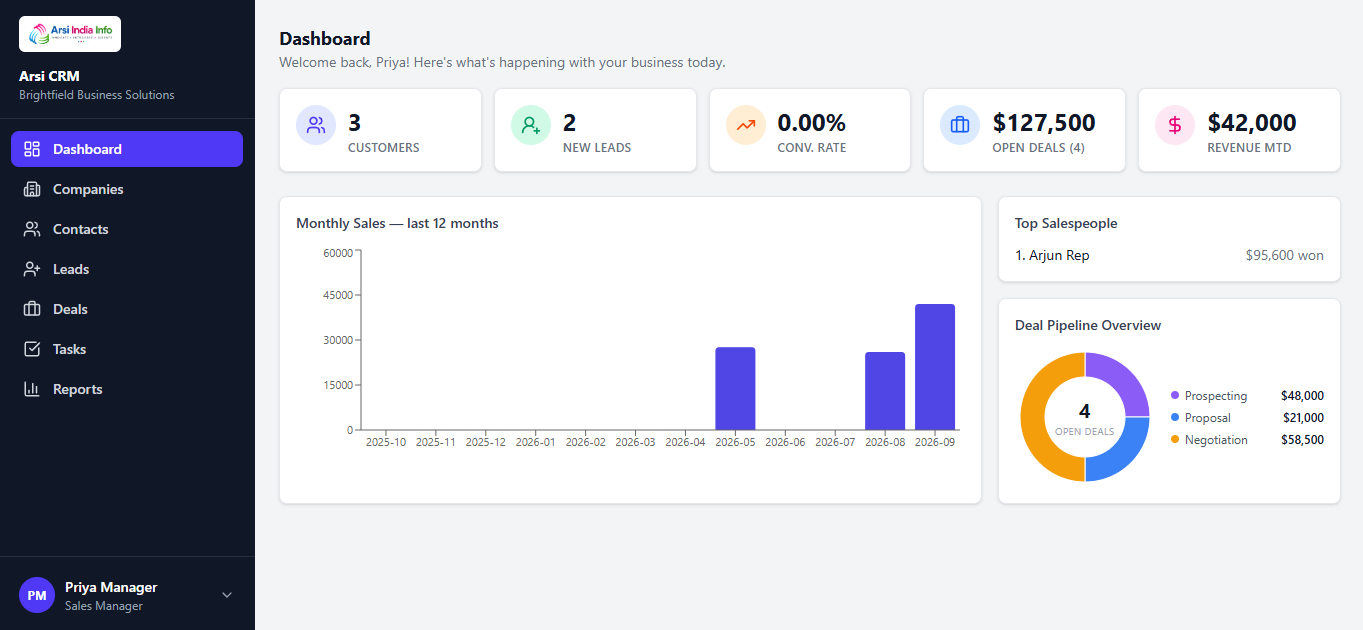
Via the API: GET/dashboard/summary returns the same numbers as one payload:
{
  "success": true,
  "data": {
    "totals": {
      "totalCompanies": 8,
      "newLeadsThisMonth": 10,
      "conversionRate": 0.0,
      "openDealsCount": 9,
      "openDealsValue": 295500,
      "revenueThisMonth": 42000
    },
    "monthlyTrend": [ { "month": "2026-08", "revenue": 61050 } /* ...11 more */ ]
  }
}
9. Companies & Contacts
Companies are Arsi CRM's accounts. Each has a status — PROSPECT, CUSTOMER, or CHURNED — that flips to CUSTOMER automatically the first time one of its deals is won (§12).
Via the Web App
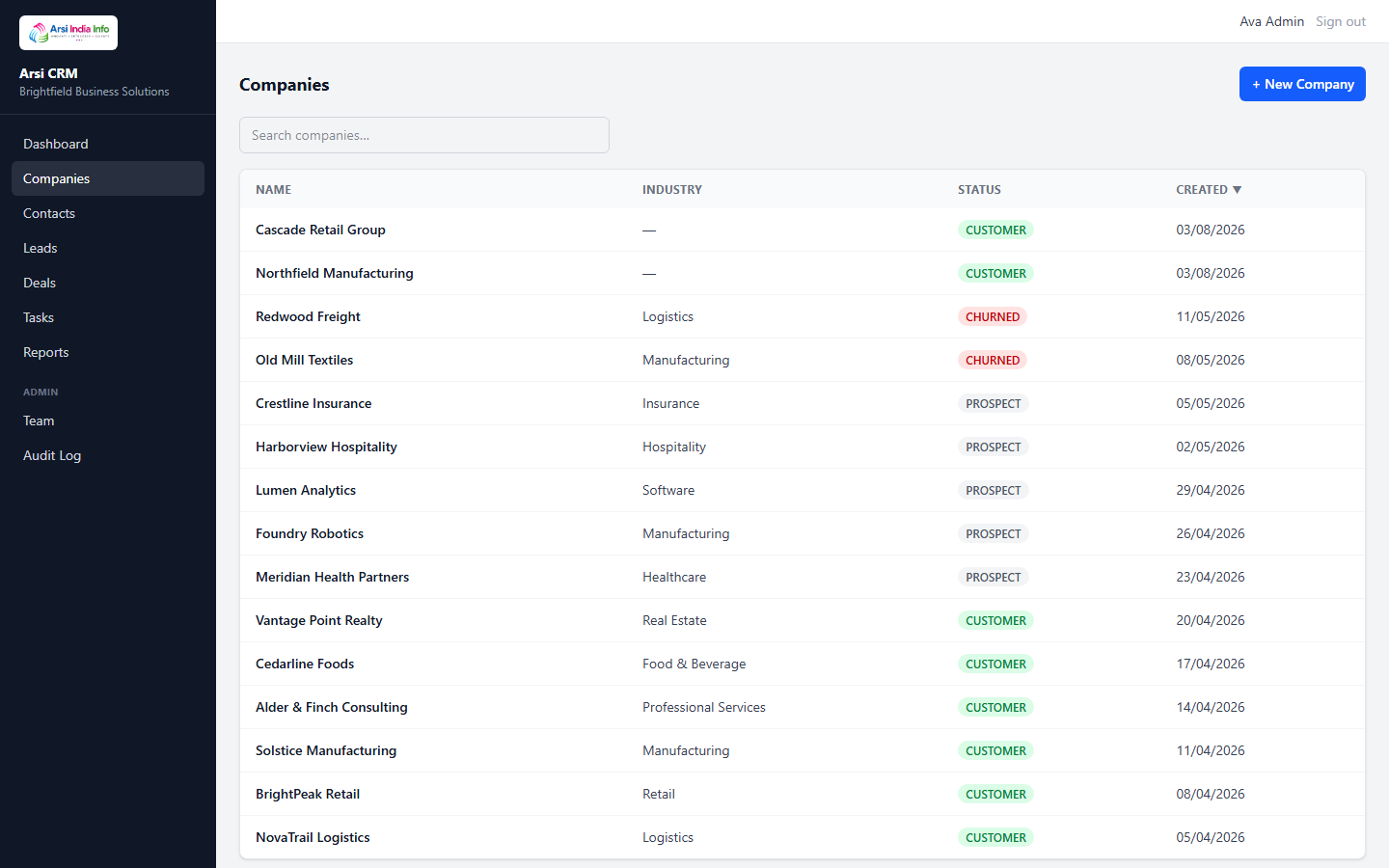
- Open Companies. Search by name, sort by name/status/created date, and page through results.
- Click + New Company to add one directly (name, industry, website, phone).
- Click any row to open its detail page — tabs for Overview, Contacts, Deals, Activity, and Notes (§14).
- From the Contacts tab, click + Add Contact to add a person at that company.
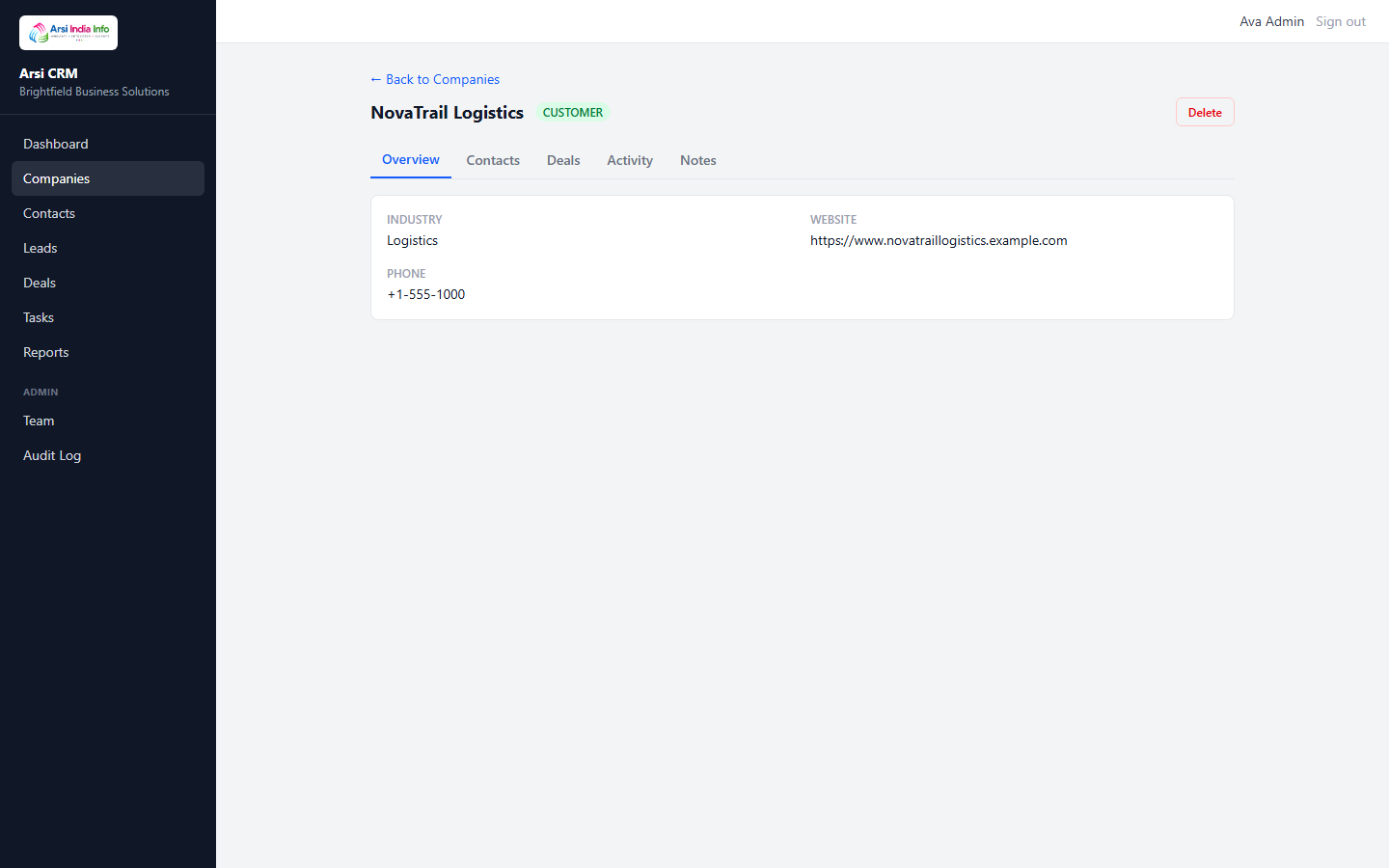
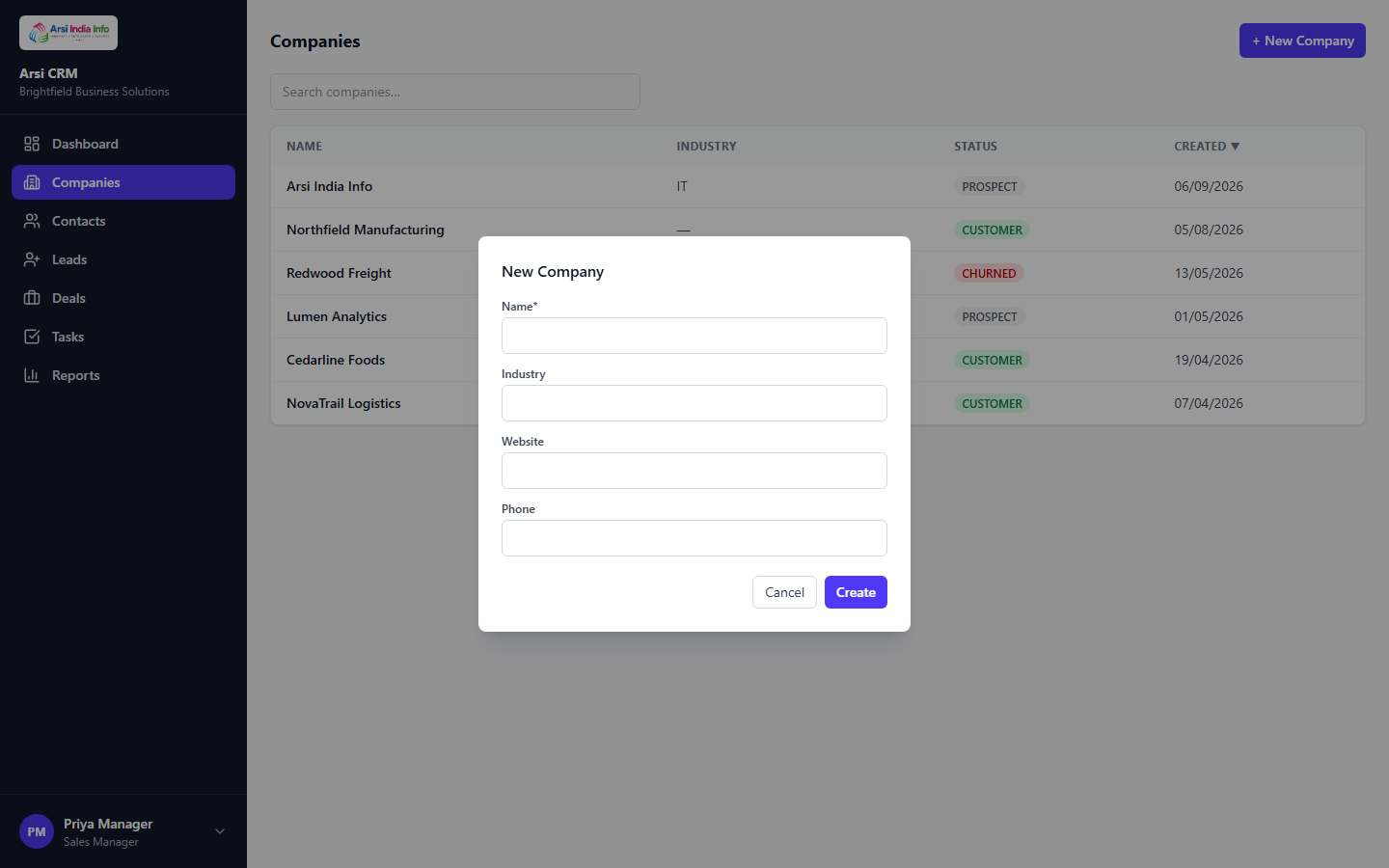
409 INVALID_TRANSITION instead, so an
active deal never loses its home company mid-pipeline.
Via the API
GET/companies?page=1&limit=20&search=&sort=createdAt&direction=desc — the same paginated list contract every list screen in Arsi CRM shares (Companies, Contacts, Leads, Deals, Tasks all use it).
POST/companies — { name, industry?, website?, phone? }. A duplicate name returns 409 DUPLICATE_NAME.
GET/companies/:id · PUT/companies/:id · DELETE/companies/:id
POST/contacts — { companyId, firstName, lastName, email?, phone?, jobTitle? }. Creating a contact under a company you can't see, or that doesn't exist, returns 404.
10. The Leads Board
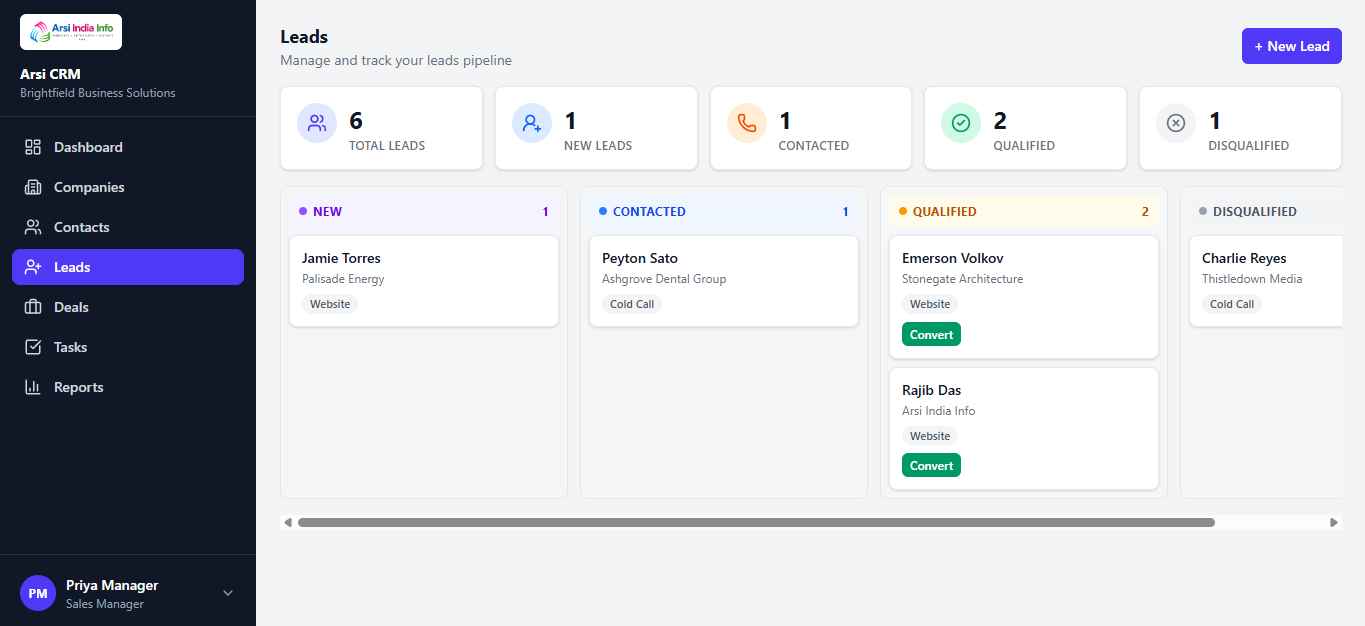
Leads are unqualified interest — a name and (usually) a company name, not yet an account in the system. The board has four columns: New, Contacted, Qualified, Disqualified.
Process flow: a lead's life
Via the Web App
- Open Leads and click + New Lead — first name, last name, email, phone, company name, and source are required.
- Drag a card from New into Contacted, then into Qualified, as you work it. A dropped card that isn't ready to qualify can be dragged into Disqualified instead — a reason is required.
- Once a lead reaches Qualified, a green Convert button appears on its card — that's §11.
Via the API
POST/leads — { firstName, lastName, email?, phone?, companyName?, source }, where source is one of WEBSITE, REFERRAL, COLD_CALL, EVENT, OTHER.
PUT/leads/:id — moves a card between the three pre-conversion columns via { status } (NEW/CONTACTED/QUALIFIED only — the two terminal states below are reached through their own endpoints).
POST/leads/:id/disqualify — { reason } (required). Disqualifying an already-converted lead returns 409 ALREADY_CONVERTED.
11. Converting a Lead into a Deal
This is Arsi CRM's flagship flow — converting a Qualified lead atomically creates a Company, a Contact, and a Deal, all linked back to the originating lead, in one transaction.
Via the Web App
- On a Qualified lead's card, click Convert.
- Give the new deal a name and, optionally, an estimated value — or link it to an existing company instead of creating a new one, if the lead turned out to belong to an account you already track.
- Submit. You're taken straight to the new deal's page, and the lead's status flips to
CONVERTED.
Via the API
POST/leads/:id/convert — { dealName, dealValue?, existingCompanyId? }
{
  "success": true,
  "data": { "dealId": 23, "companyId": 14, "contactId": 14 }
}
QUALIFIED returns
409 NOT_QUALIFIED; converting one that's already been
converted returns 409 ALREADY_CONVERTED. Under the hood,
the conversion is guarded by a row lock — click Convert twice in quick
succession (e.g. two browser tabs) and only one request wins; the
other gets the already-converted error instead of a duplicate deal.
12. The Deals Pipeline
The Deals board has five columns matching a deal's stage: Prospecting Proposal Negotiation Won Lost.
Via the Web App
- Open Deals — each column header shows the count and total value of the deals in it.
- Drag a card forward through Prospecting → Proposal → Negotiation as it progresses.
- Drag into Won — a confirmation dialog asks "Mark {company} as a customer?"; confirming flips that company's status to
CUSTOMER(§9) if it wasn't already. - Drag into Lost — the confirm dialog requires you to type a reason before it will let you confirm.
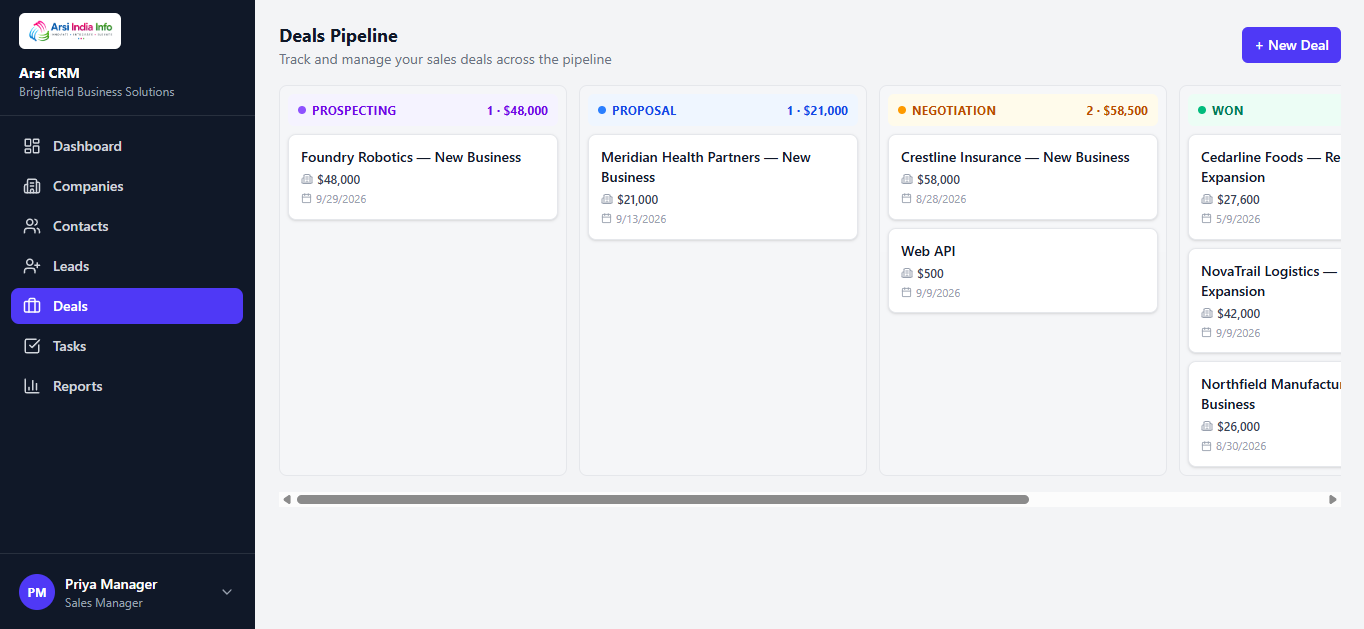
WON or LOST it's closed
for good — any further stage-change attempt returns
409 INVALID_TRANSITION, in the web app and the API alike.
Via the API
POST/deals — { companyId, contactId?, name, valueAmount?, expectedCloseDate? }
POST/deals/:id/change-stage — { stage, lostReason? }. Moving to LOST without lostReason returns 400 LOST_REASON_REQUIRED.
13. Tasks
A simple to-do list, optionally linked to a Company, Contact, Lead, or Deal.
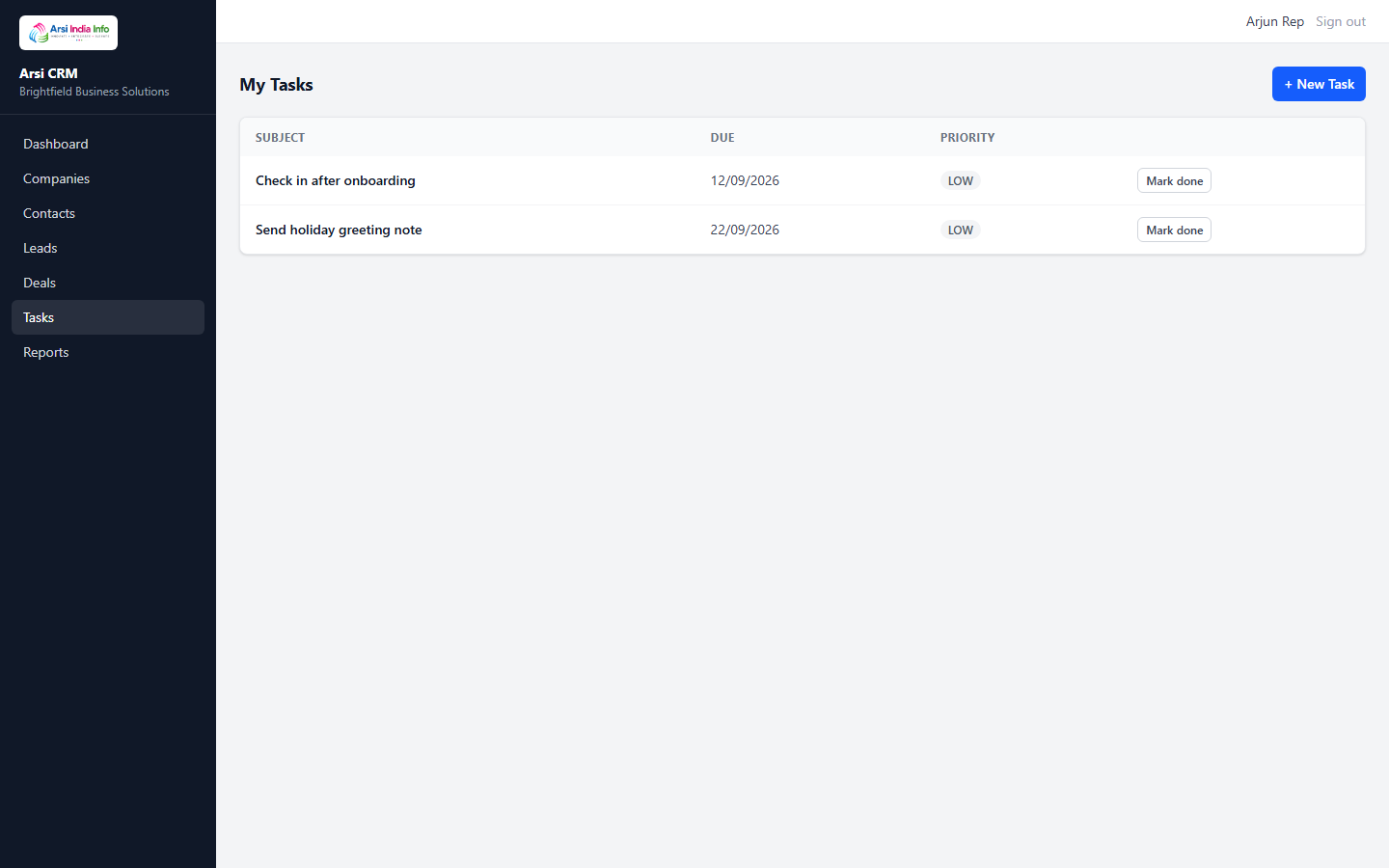
Via the Web App: open Tasks — defaults to your own open tasks, due soonest first. Click + New Task (subject, due date, priority, optionally linked to a record), and click Mark done to complete one. An empty list shows "Nothing due — nice work" instead of a blank table.
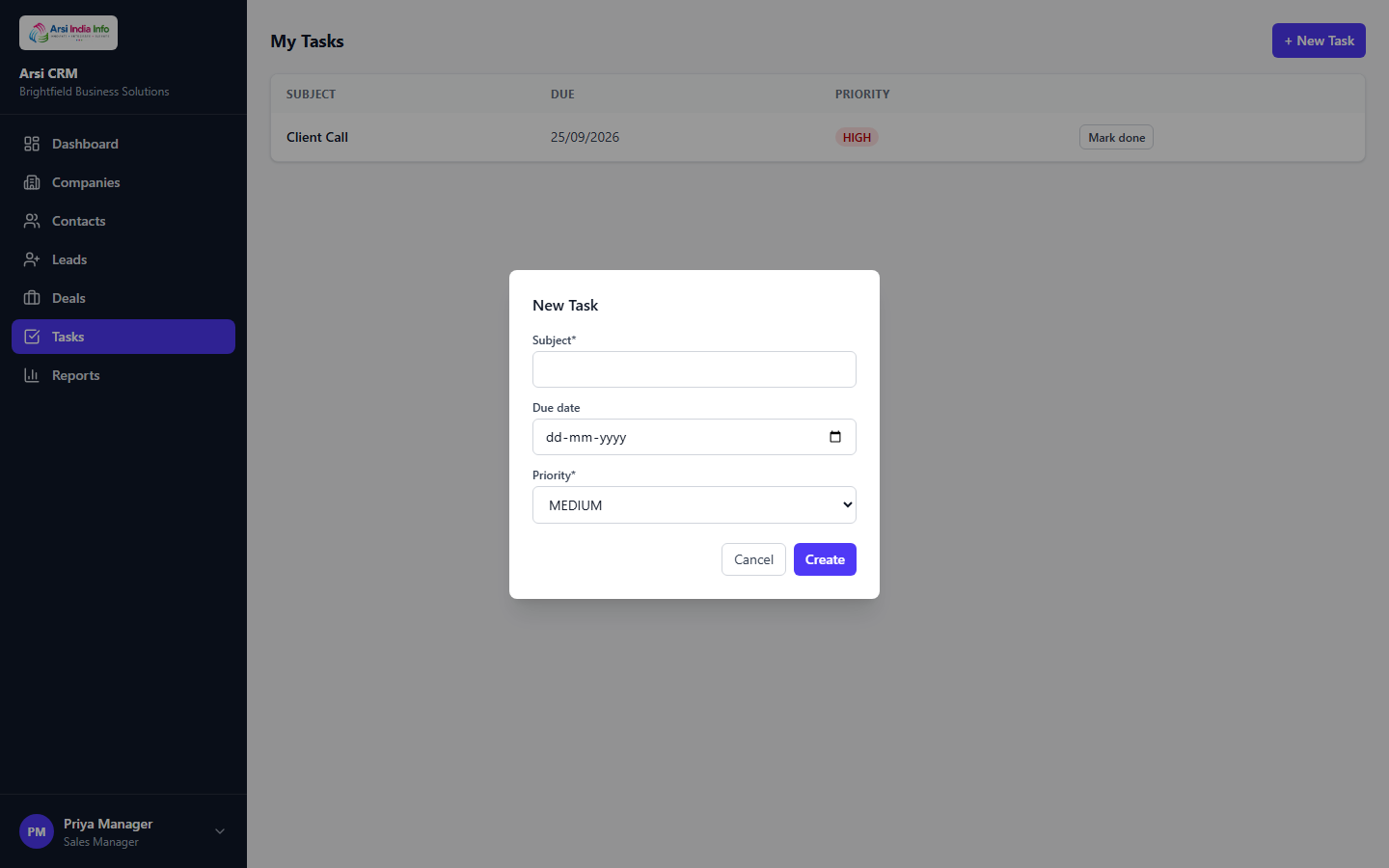
Via the API: POST/tasks — { subject, dueDate?, priority, relatedToType?, relatedToId?, assignedTo? }, where priority is LOW/MEDIUM/HIGH. POST/tasks/:id/complete marks it done — calling it twice is harmless (idempotent).
14. Activity Timeline & Notes
Every Company, Contact, Lead, and Deal detail page has an Activity tab — a shared timeline component logging calls, emails, meetings, and notes against that record.
Via the Web App: open the Activity tab on any record's detail page and click + Log Activity — pick a type, an optional subject, the body, and when it happened. The Notes tab on a Company page is the same timeline, filtered to NOTE-type entries only.
Via the API: POST/activities — { type, subject?, body, occurredAt?, relatedToType, relatedToId }, where type is NOTE/CALL/EMAIL/MEETING and relatedToType is COMPANY/CONTACT/LEAD/DEAL. Logging against a record you can't see returns 404. GET/activities?relatedToType=&relatedToId= lists the timeline for one record.
15. Reports
Via the Web App: open Reports for a pipeline-by-stage funnel chart, the same monthly revenue trend as the Dashboard, and — signed in as a Manager or Admin — a Salesperson Performance leaderboard (deals won and revenue, per rep).
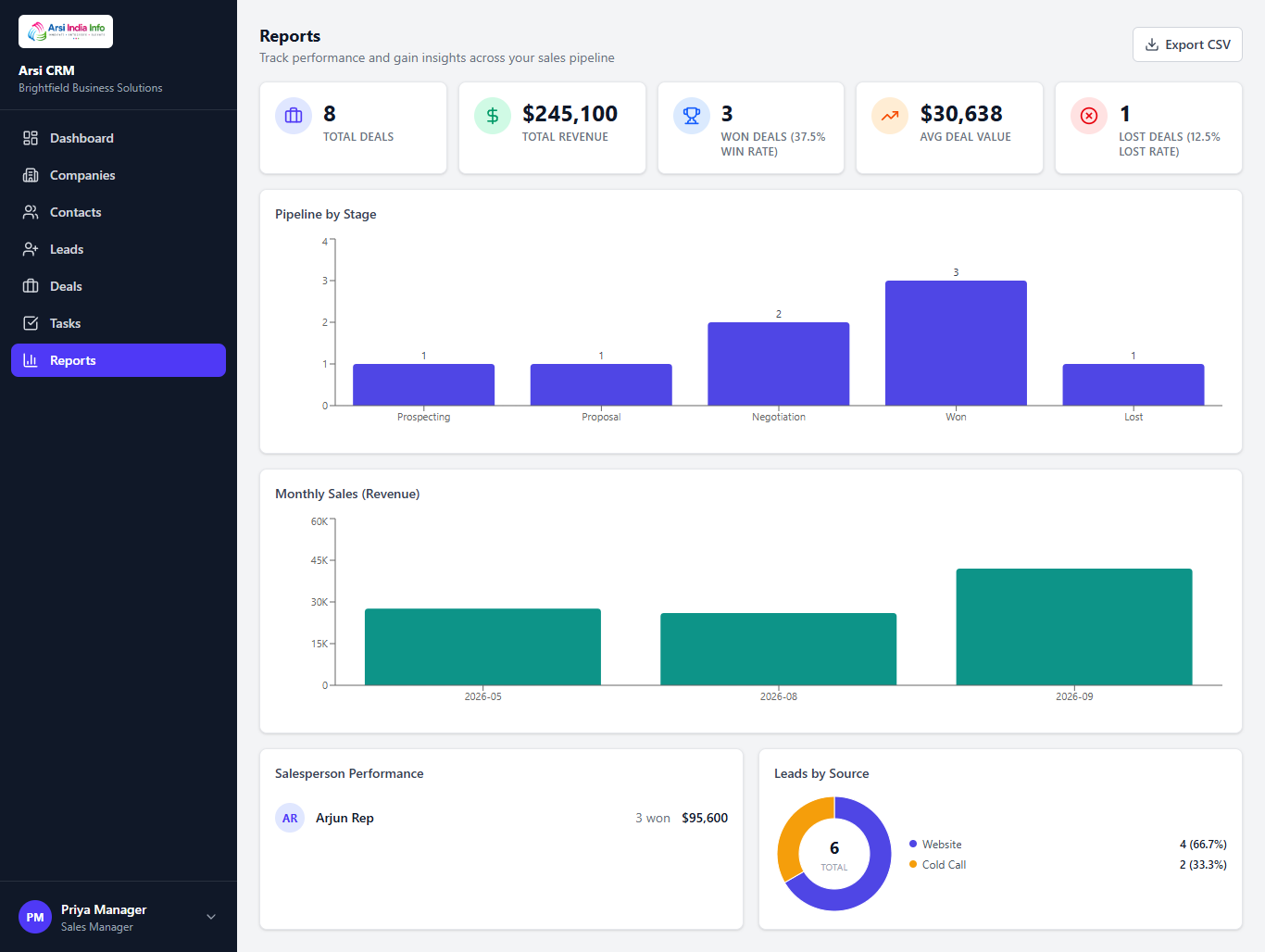
| Report | Endpoint | Who sees it |
|---|---|---|
| Pipeline by Stage | GET/reports/pipeline-by-stage | Everyone (scoped to their visibility, §18) |
| Monthly Sales | GET/reports/monthly-sales | Everyone (scoped to their visibility, §18) |
| Salesperson Performance | GET/reports/salesperson-performance | Managers & Admins only — 403 FORBIDDEN_ROLE for a rep |
16. Admin: Team Management
Log in as an admin account (§4) to manage the sales org. These endpoints return 403 FORBIDDEN_ROLE for anyone else.
Via the Web App
- Open Team from the Admin section of the sidebar (only visible when signed in as Admin).
- Click + Invite User, fill in name, email, and role — a Sales Rep also requires picking a manager.
- Click Disable next to any active user to deactivate their account (you can't disable your own).
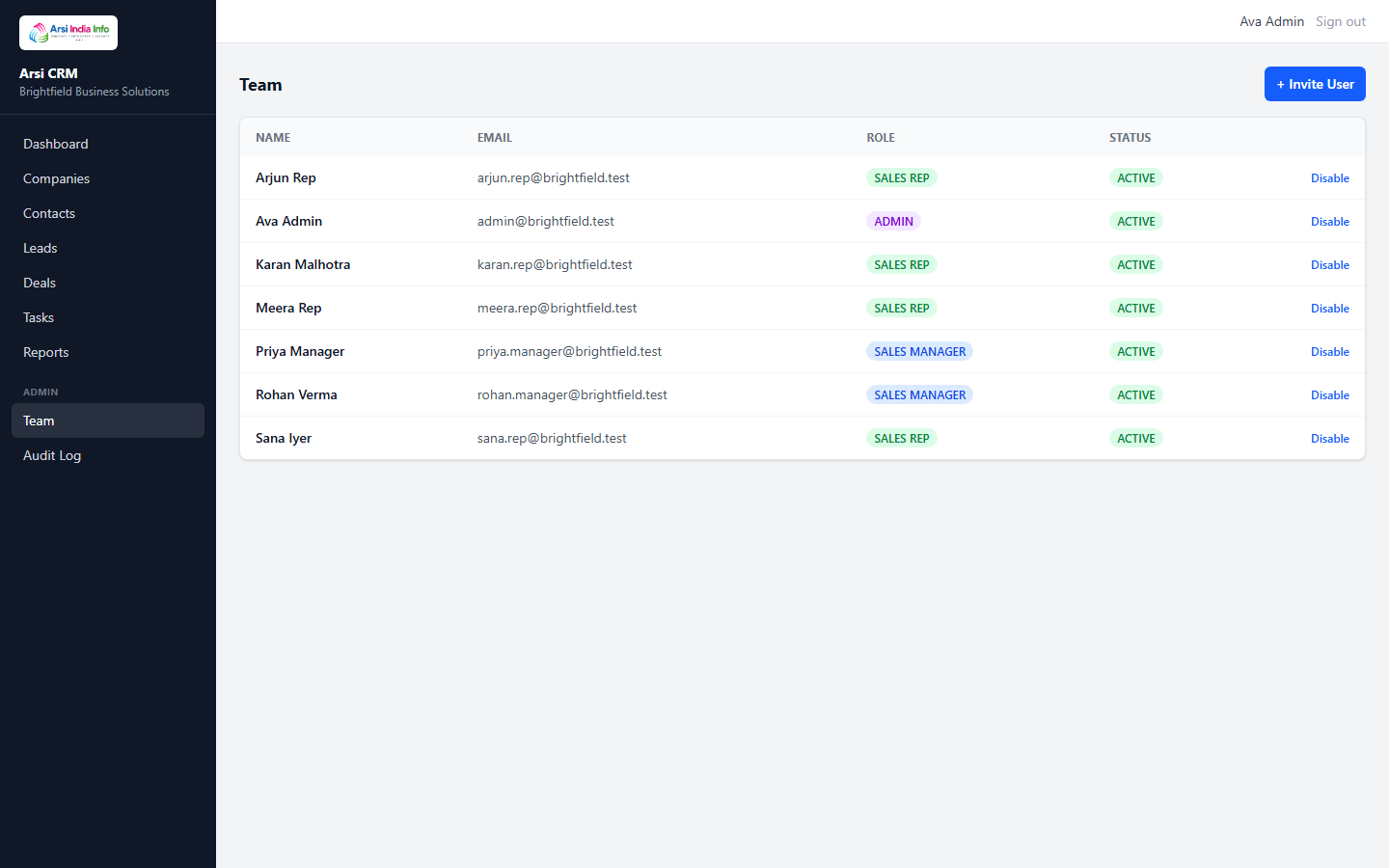
Via the API
POST/users — { name, email, role, managerId? }. A SALES_REP without managerId returns 400 VALIDATION_ERROR. A duplicate email returns 409 DUPLICATE_NAME.
GET/users — list every user. PUT/users/:id — update { role?, status?, managerId? }; an admin can't set their own status to DISABLED.
17. Admin: Audit Log
Every sensitive action — a company created, a lead converted, a deal's stage changed, a user invited, a lead disqualified — is written to an append-only audit trail.
Via the Web App: open Audit Log from the Admin section — each row shows when, what action, which entity, and who did it; click a row to expand its JSON details payload.
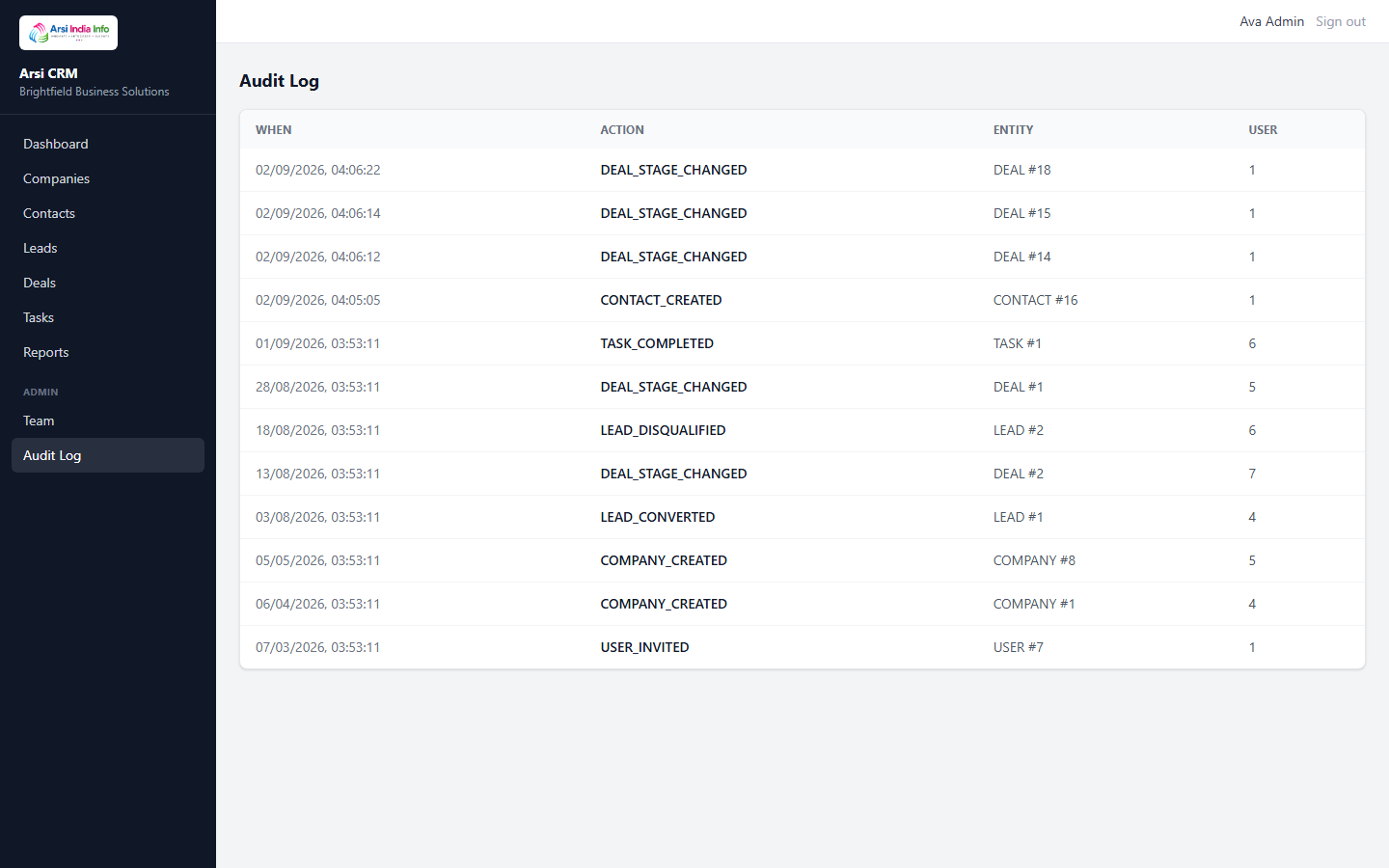
Via the API: GET/audit-logs (Admin only) — paginated, using the same list contract as every other module (§9).
18. Ownership & Visibility
Arsi CRM enforces row-level visibility on Companies, Contacts, Leads, and Deals, based on who's signed in:
| Role | Sees |
|---|---|
| Sales Rep | Only records they own |
| Sales Manager | Their own records, plus every direct report's |
| Admin | Every record, platform-wide |
/companies/2 belonging to another rep)
gets a plain "Not found" page, and the API returns 404,
never a "you're not allowed" 403. A record that doesn't
exist and a record you can't see are, deliberately, indistinguishable
from the outside.
To see this yourself: sign in as Arjun Rep and note which companies appear on the Companies list. Sign out and sign in as Meera Rep (seeded with no manager, §4) — she sees a completely different, non-overlapping set. Now sign in as Priya Manager (Arjun's manager) — she can see everything Arjun can, plus her own.
19. Error Responses
Every error follows the same envelope shown in §3, with one of the following catalog codes:
| HTTP | Code | Meaning |
|---|---|---|
| 400 | VALIDATION_ERROR | The request body failed validation. |
| 400 | LOST_REASON_REQUIRED | Moving a deal to Lost without a lostReason. |
| 400 | RECAPTCHA_REQUIRED / RECAPTCHA_FAILED | The reCAPTCHA check on login didn't pass — complete the checkbox again (§6). |
| 401 | UNAUTHORIZED | Missing/expired token, invalid credentials, or a disabled account. |
| 403 | FORBIDDEN_ROLE | Your account's role can't perform this action. |
| 404 | COMPANY_NOT_FOUND / CONTACT_NOT_FOUND / LEAD_NOT_FOUND / DEAL_NOT_FOUND / TASK_NOT_FOUND / USER_NOT_FOUND | The record doesn't exist, or is outside your visibility (§18). |
| 409 | DUPLICATE_NAME | A company or user with that name/email already exists. |
| 409 | ALREADY_CONVERTED | The lead has already been converted. |
| 409 | NOT_QUALIFIED | Only a QUALIFIED lead can be converted. |
| 409 | INVALID_TRANSITION | The stage/status change isn't allowed from the current state. |
| 429 | RATE_LIMITED | Too many login attempts (10/min/IP) — slow down and retry. |
| 503 | RECAPTCHA_UNAVAILABLE | Couldn't reach Google to verify the reCAPTCHA token — safe to retry. |
| 500 | INTERNAL_ERROR | An unexpected server-side error. |
20. Full Endpoint Reference
All paths are relative to https://demo.arsiindiainfo.com/api/v1. recaptchaToken is required on login (§6).
| Method | Path | Auth | Description |
|---|---|---|---|
| POST | /auth/login | Public + reCAPTCHA | Log in with email & password |
| POST | /auth/refresh | Public | Exchange a refresh token for a new pair |
| POST | /auth/logout | Bearer | Revoke a refresh token |
| GET | /users/me | Bearer | Your own profile |
| GET | /users | Admin | List every user |
| POST | /users | Admin | Invite a user |
| PUT | /users/:id | Admin | Update role, status, or manager |
| GET | /companies | Bearer | List (paginated, searchable, sortable) |
| POST | /companies | Bearer | Create a company |
| GET | /companies/:id | Bearer | Get one company |
| PUT | /companies/:id | Bearer | Update a company |
| DELETE | /companies/:id | Bearer | Delete a company (blocked by open deals) |
| GET | /contacts | Bearer | List (optionally filtered by companyId) |
| POST | /contacts | Bearer | Create a contact under a company |
| GET | /contacts/:id | Bearer | Get one contact |
| PUT | /contacts/:id | Bearer | Update a contact |
| DELETE | /contacts/:id | Bearer | Delete a contact |
| GET | /leads | Bearer | List the leads board |
| POST | /leads | Bearer | Create a lead |
| GET | /leads/:id | Bearer | Get one lead |
| PUT | /leads/:id | Bearer | Update / move between New-Contacted-Qualified |
| POST | /leads/:id/convert | Bearer | Convert to Company + Contact + Deal |
| POST | /leads/:id/disqualify | Bearer | Disqualify with a reason |
| GET | /deals | Bearer | List the deals pipeline |
| POST | /deals | Bearer | Create a deal |
| GET | /deals/:id | Bearer | Get one deal |
| PUT | /deals/:id | Bearer | Update a deal |
| POST | /deals/:id/change-stage | Bearer | Move to the next pipeline stage |
| GET | /tasks | Bearer | List your own tasks |
| POST | /tasks | Bearer | Create a task |
| GET | /tasks/:id | Bearer | Get one task |
| PUT | /tasks/:id | Bearer | Update a task |
| POST | /tasks/:id/complete | Bearer | Mark a task done (idempotent) |
| GET | /activities | Bearer | List a record's timeline |
| POST | /activities | Bearer | Log an activity/note |
| GET | /dashboard/summary | Bearer | KPI totals + monthly trend |
| GET | /reports/pipeline-by-stage | Bearer | Open deal count/value per stage |
| GET | /reports/monthly-sales | Bearer | Won-deal revenue, last 12 months |
| GET | /reports/salesperson-performance | Manager/Admin | Per-rep deals-won + revenue leaderboard |
| GET | /audit-logs | Admin | Platform-wide audit trail |
21. FAQ & Troubleshooting
The reCAPTCHA checkbox won't check, or my login is rejected
Make sure third-party content isn't blocked by a privacy extension or browser setting — the widget loads a script from google.com. If the checkbox itself works but submission still fails with RECAPTCHA_FAILED, the token likely expired (it's valid for about two minutes) — the form automatically resets the widget for you; just complete it again and resubmit.
I opened a link to a record and got "Not found" — is it deleted?
Not necessarily. §18 explains why: a record outside your ownership scope returns the exact same result as one that never existed. If you believe you should have access, ask an admin to check the record's owner, or view it from an account higher up that owner's reporting chain.
Why can't I drag a deal back out of Won or Lost?
Closed deals are final by design (§12) — create a new deal instead if the relationship continues.
I'm getting 401 UNAUTHORIZED on every request
Your access token has likely expired (15-minute lifetime). Use POST/auth/refresh (§7) to get a new one, or sign in again. The web app does this for you automatically and you should never see it happen there.
Can I make myself an Admin or Manager?
No — by design, there is no self-service path to the ADMIN or SALES_MANAGER role, in the web app or the API. Use one of the seeded demo accounts (§4), or have an existing admin update your role from the Team screen (§16).
Where do I see the full request/response schema for every field?
The interactive Swagger UI at /api/docs documents every field, validation rule, and example for every endpoint in this guide — it's disabled on the public demo (ENVIRONMENT === 'production' turns it off), so run the project locally (see the repo's README) to browse it.

docs/ folder
(ER diagram, demo script, OpenAPI notes).
Source code licensed under MIT · name & logo protected under TRADEMARK.md
arsiindiainfo.com