Email Campaign & Delivery Tracker — User Guide
A step-by-step manual for building a contact list, sending a campaign, and reading exactly what happened to every recipient — queued, delivered, opened, clicked, bounced, or unsubscribed — for every role on the platform, analyst through platform admin.
1. Welcome
This platform is a fictional email marketing tool for NovaMail Retail Co. — build a contact list, write a template, send a campaign, and watch delivery events (sent, delivered, opened, clicked, bounced, complained, unsubscribed) roll in on the analytics page in real time. Every send in this demo goes through Mailhog/a sandboxed queue in non-production environments — no real email is ever sent to a real inbox outside of `production`.
2. Two Ways to Use This Platform
There's a real, working web application in front of this platform — you don't need to write any code or run any HTTP requests by hand to try it out.
Web App Recommended
Open https://demo1.arsiindiainfo.com, sign in (§6), and click through the Dashboard, Lists, Templates, Campaigns, Suppressions, and Settings screens — plus three Admin screens if you're a platform admin. §5 breaks down exactly which screens each role sees.
Raw API / Swagger
Everything the web app does, it does by calling the same JSON API documented in §3 onward. Use this if you're integrating programmatically, testing with curl/Postman, or want exact request/response shapes via the interactive Swagger UI (local dev only).
3. Web App & API Reference
Everything is reachable from one public API base URL — there is exactly one entry point into the platform.
| Resource | URL |
|---|---|
| Web app | https://demo1.arsiindiainfo.com |
| API base URL | https://demo1.arsiindiainfo.com/api/v1 |
| Interactive Swagger docs | GET/api/docs (non-production environments only) |
| Public tracking pixel | GET /t/o/:token — unversioned, embedded in a sent email |
| Public click redirect | GET /t/c/:token — unversioned, records a click then 302s to the real link |
| Public one-click unsubscribe | GET /api/v1/unsubscribe/:token |
Response envelope
Every response — success or failure — is wrapped the same way, so client code only ever needs one shape to check:
// success
{
  "success": true,
  "data": { /* the actual result */ }
}

// list responses also include a "meta" block
{
  "success": true,
  "data": [ /* rows */ ],
  "meta": { "page": 1, "limit": 20, "total": 8 }
}

// failure
{
  "success": false,
  "error": { "code": "VALIDATION_ERROR", "message": "..." }
}
4. Demo Accounts & Roles
The seed script creates the fictional NovaMail Retail Co. organization with one account per role. Unlike a self-contained demo dataset, this platform is a real public multi-tenant SaaS — anyone can register their own organization (§7) — so the seeded accounts' credentials aren't published here; ask whoever manages this deployment for sign-in access, or register your own account to explore as an Owner immediately.
| Role | Rank | Can do |
|---|---|---|
| Owner | 3 (highest) | Everything a org member can do, plus the seeded account is also the platform's one Platform Admin (§17–19) — a separate, cross-organization flag set only via seed/ops, never through any endpoint. |
| Admin | 2 | Everything Marketer can, plus organization-level settings (§16). |
| Marketer | 1 | Create/edit/send campaigns and templates, manage lists. |
| Analyst | 0 | Read-only — views the Dashboard, campaigns, and analytics, but can't create or send anything. |
DEMO_SEND_QUOTA_EXCEEDED)
and only allow sending to *.demo-style addresses or your
own verified sender domain (DEMO_RECIPIENT_NOT_ALLOWED) —
see §18–19 for how a platform admin monitors this.
5. Which Screen Is For Which Role
Every signed-in user sees the same core navigation. An Analyst sees every screen below except the three write actions noted; a Owner who is also the platform admin additionally sees three screens under "Admin" in the sidebar.
| Screen | Analyst | Marketer+ | What it's for |
|---|---|---|---|
| Dashboard | ✅ | ✅ | KPI row + recent campaigns table (§9). |
| Lists | ✅ view | ✅ create/import | Recipient lists and their contacts (§10). |
| Templates | ✅ view | ✅ create/edit | Reusable email bodies with merge fields (§11). |
| Campaigns | ✅ view | ✅ create/send | The full lifecycle from draft to sent (§12–13). |
| Campaign analytics | ✅ | ✅ | Funnel + time series + per-recipient status (§14). |
| Suppressions | ✅ view | ✅ add/remove | Addresses that will never receive another send (§15). |
| Settings | — | ✅ Admin+ only | Sender domain verification (§16). |
| Admin: Users | — | — | Platform admin only — every user, across every org (§17). |
| Admin: Contacts | — | — | Platform admin only — approve/reject imported contacts (§18). |
| Admin: Send Log | — | — | Platform admin only — every demo send, across every org (§19). |
6. Signing In
The sign-in page asks for your email, password, and a reCAPTCHA check.
Via the Web App
- Open https://demo1.arsiindiainfo.com — you land on the sign-in page.
- Enter your email and password.
- Tick the reCAPTCHA checkbox — see the callout below.
- Click Sign in. You land on the Dashboard (§9).
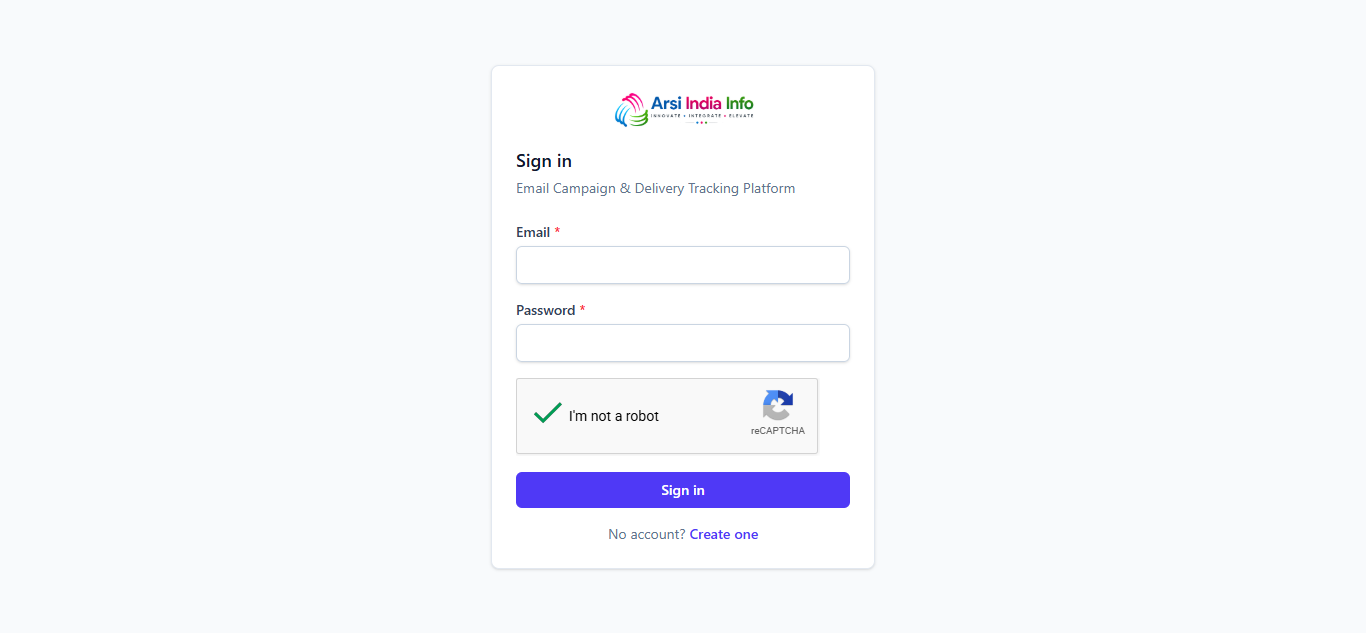
POST /auth/login and POST /auth/register are
the only endpoints anyone can call without already being logged in —
the obvious targets for scripted/credential-stuffing traffic on a
publicly-registrable platform. Both require a Google reCAPTCHA v2
check verified server-side before the request is accepted.
Via the API
POST https://demo1.arsiindiainfo.com/api/v1/auth/login
Content-Type: application/json

{
  "email": "you@example.com",
  "password": "...",
  "recaptchaToken": "03AGdBq27..."
}
{
  "success": true,
  "data": {
    "accessToken": "eyJhbGciOi...",
    "refreshToken": "9ba3b6cf3c...",
    "user": { "id": "...", "name": "...", "email": "...", "role": "OWNER", "organizationId": "..." },
    "organization": { "id": "...", "name": "NovaMail Retail Co.", "slug": "...", "senderVerified": true }
  }
}
Copy the accessToken and send it on every subsequent request as a bearer token:
Authorization: Bearer eyJhbGciOi...
7. Creating Your Own Organization
Unlike a fixed demo dataset, this platform is a genuine multi-tenant product — anyone can register, becoming the Owner of a brand-new, empty organization.
Via the Web App
- Open the sign-in page and click Create an account.
- Fill in your organization's name, your own name, email, and password, and complete the reCAPTCHA.
- Submit — you're sent a verification email (Mailhog in non-production) rather than being signed in immediately.
- Click the link in that email (or open /verify-email/:token directly) to activate the account, then sign in (§6).
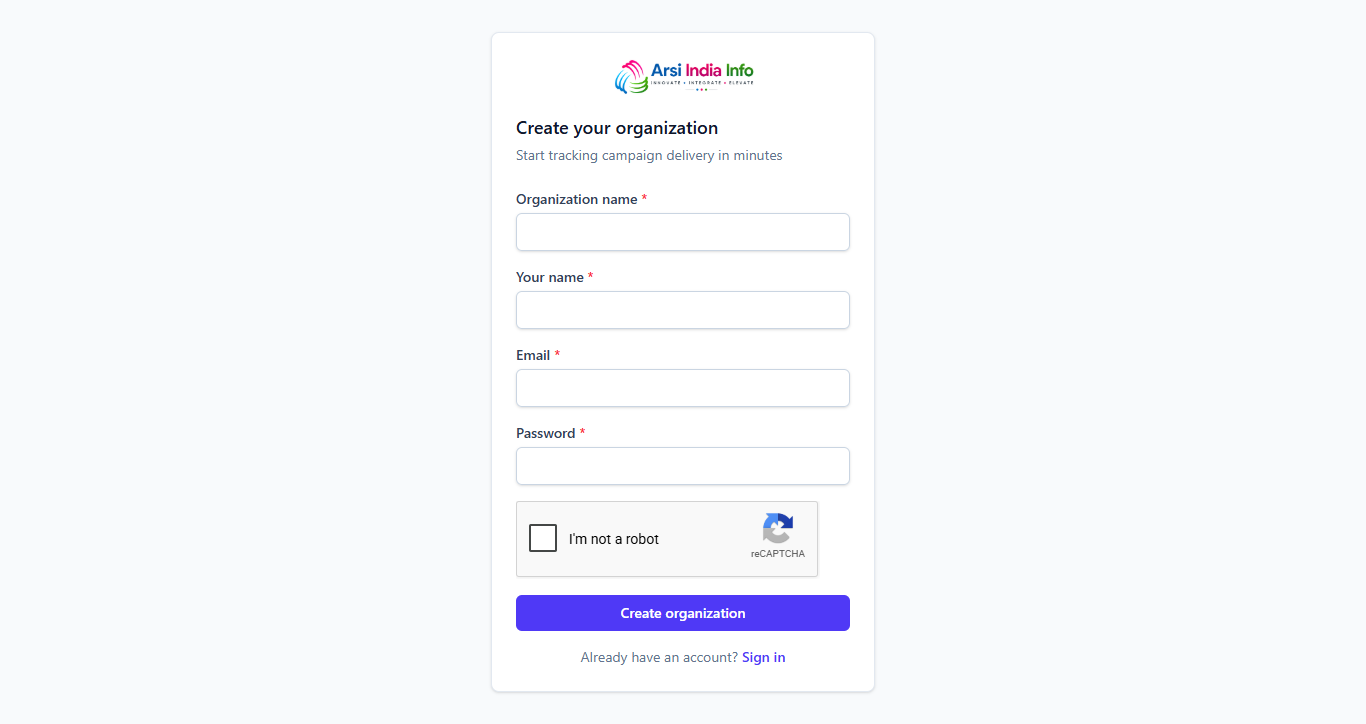
POST /auth/register never returns an accessToken
— the account isn't usable until POST /auth/verify-email/:token
succeeds. Signing in beforehand returns 403 EMAIL_NOT_VERIFIED.
Via the API
POST/auth/register — { organizationName, name, email, password, recaptchaToken }. A duplicate email returns 409 DUPLICATE_NAME.
POST/auth/verify-email/:token — an invalid/expired token returns 400 INVALID_VERIFICATION_TOKEN.
8. Your Session & Signing Out
Access tokens are short-lived. The web app quietly exchanges the refreshToken for a new pair in the background whenever a request comes back 401 — you won't see a token expire while you're using the app.
POST/auth/refresh — { refreshToken }. POST/auth/logout revokes the refresh token so it can no longer be used.
Via the Web App: click Sign out in the sidebar. Via the API: GET/users/me returns your own profile.
9. The Dashboard
The Dashboard is the landing page after sign-in — a KPI row and your organization's most recent campaigns.
Via the Web App: KPI cards (total sent, delivery rate, open rate, click rate) and a recent-campaigns table with each one's status pill.
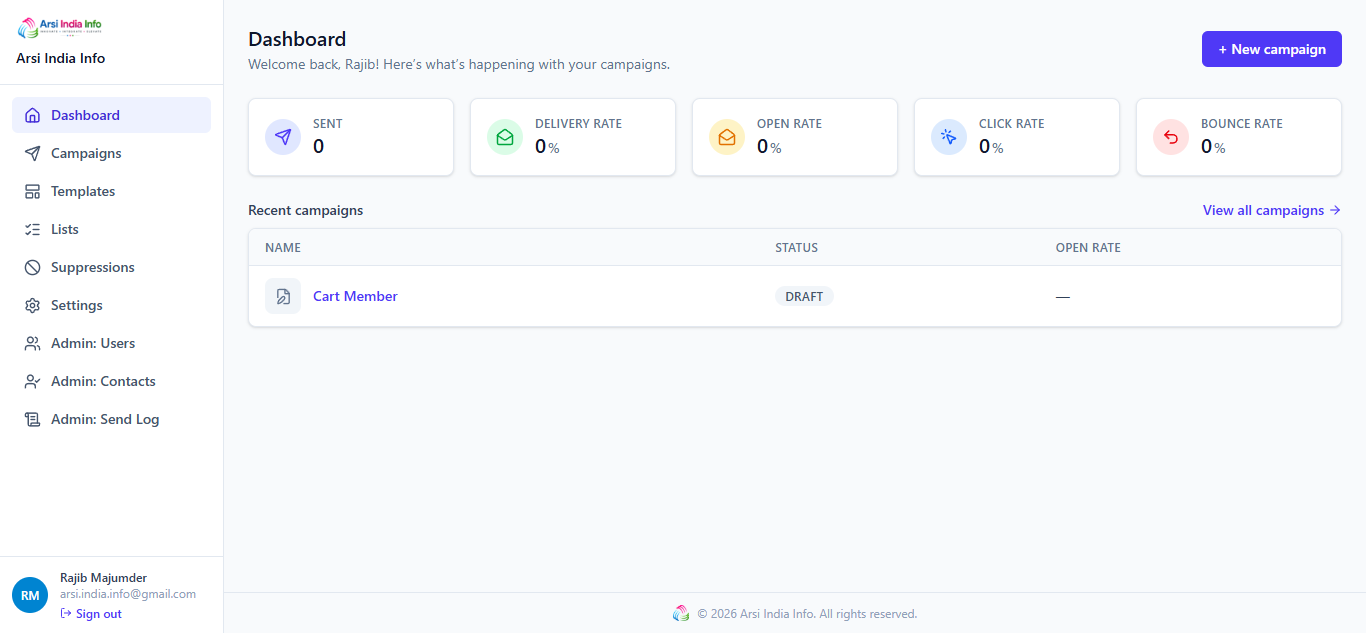
Via the API: GET/analytics/overview returns the same numbers scoped to your organization.
10. Contact Lists & Importing
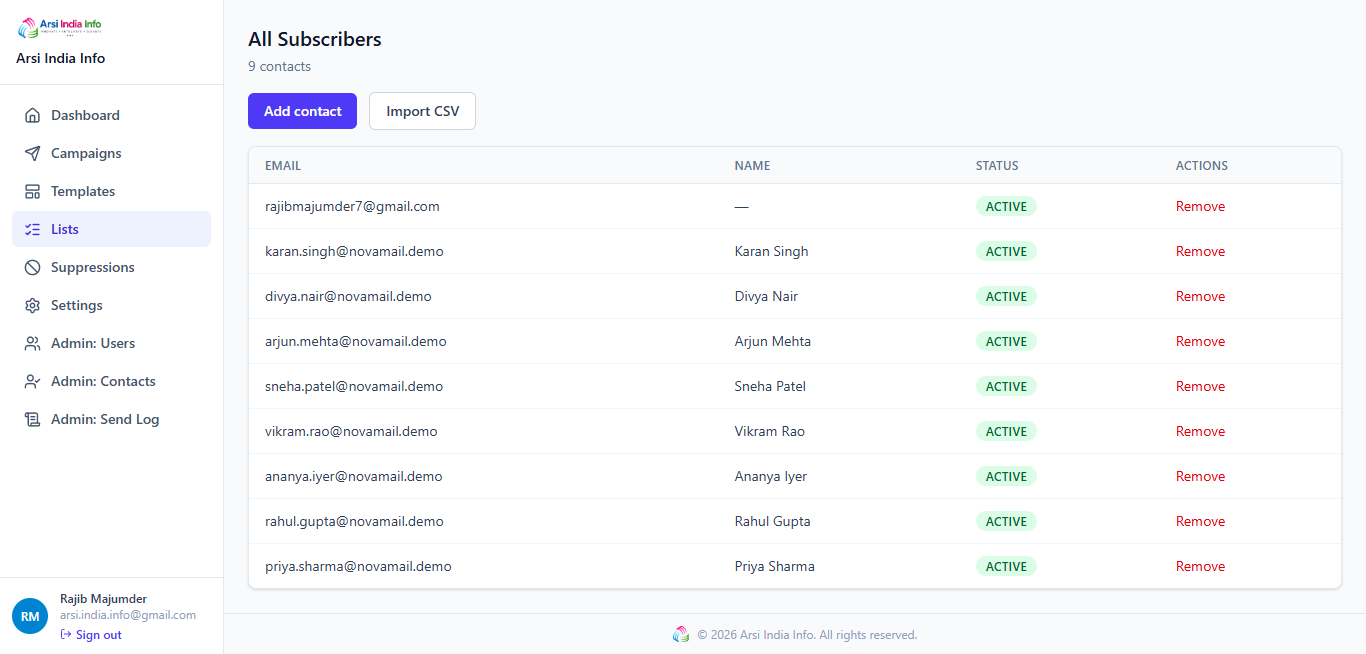
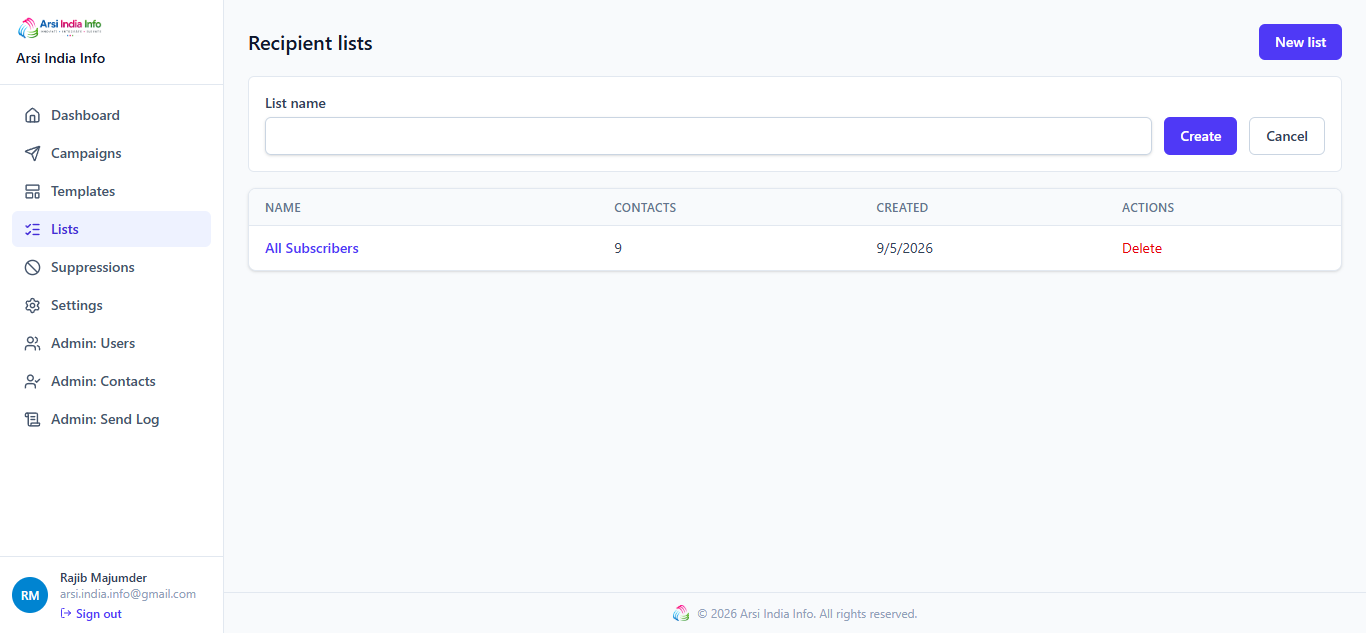
A campaign always sends to exactly one list. Lists hold contacts; a contact can belong to more than one list.
Via the Web App
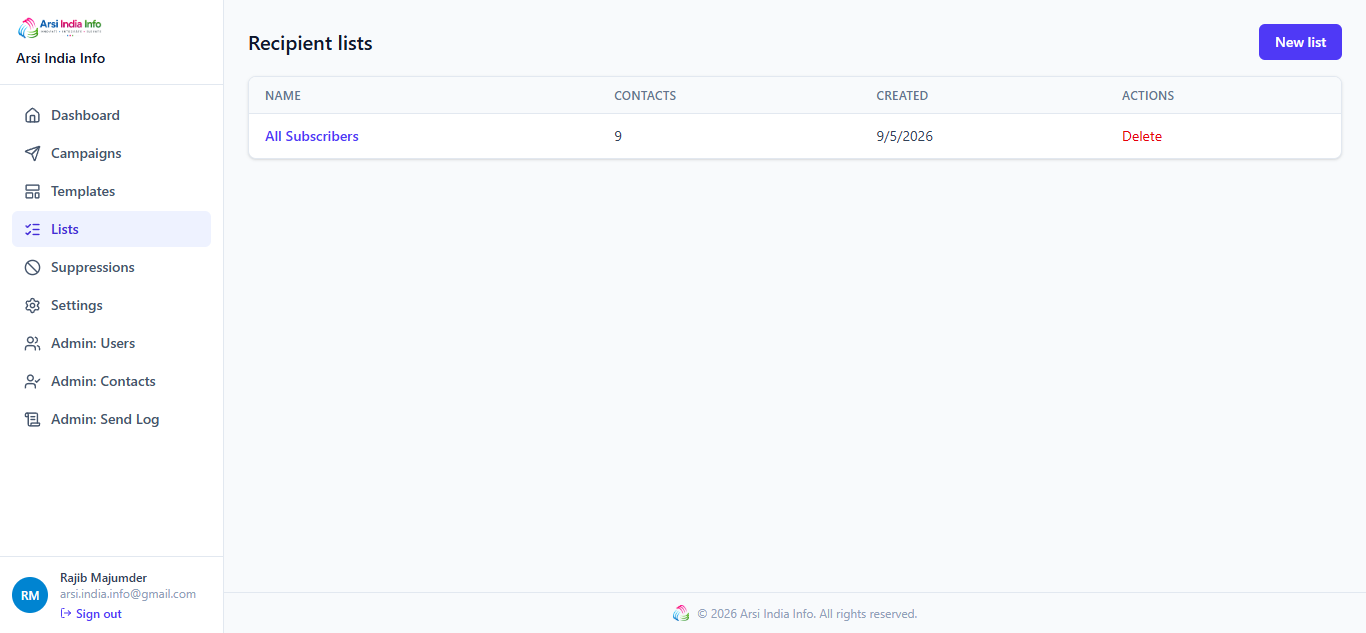
- Open Lists — click + New List to create one, or click any row to open its detail page.
- On a list's detail page, add a contact one at a time, or click Import CSV to bulk-upload (name/email columns).
- A contact who bounced or complained on any send shows an auto-suppressed badge — see §15, it's platform-wide, not per-list.
Via the API
POST/lists — { name }. POST/lists/:id/contacts — add one contact directly.
Bulk import is a three-step, presigned-upload flow (§20 covers the same pattern for webhooks):
- POST
/lists/:id/imports/presign— get a short-lived upload URL for your CSV. - Upload the file straight to that URL (never through this API).
- POST
/lists/:id/import— kick off processing; poll GET/lists/:id/imports/:jobIdfor progress.
11. Templates & the Editor
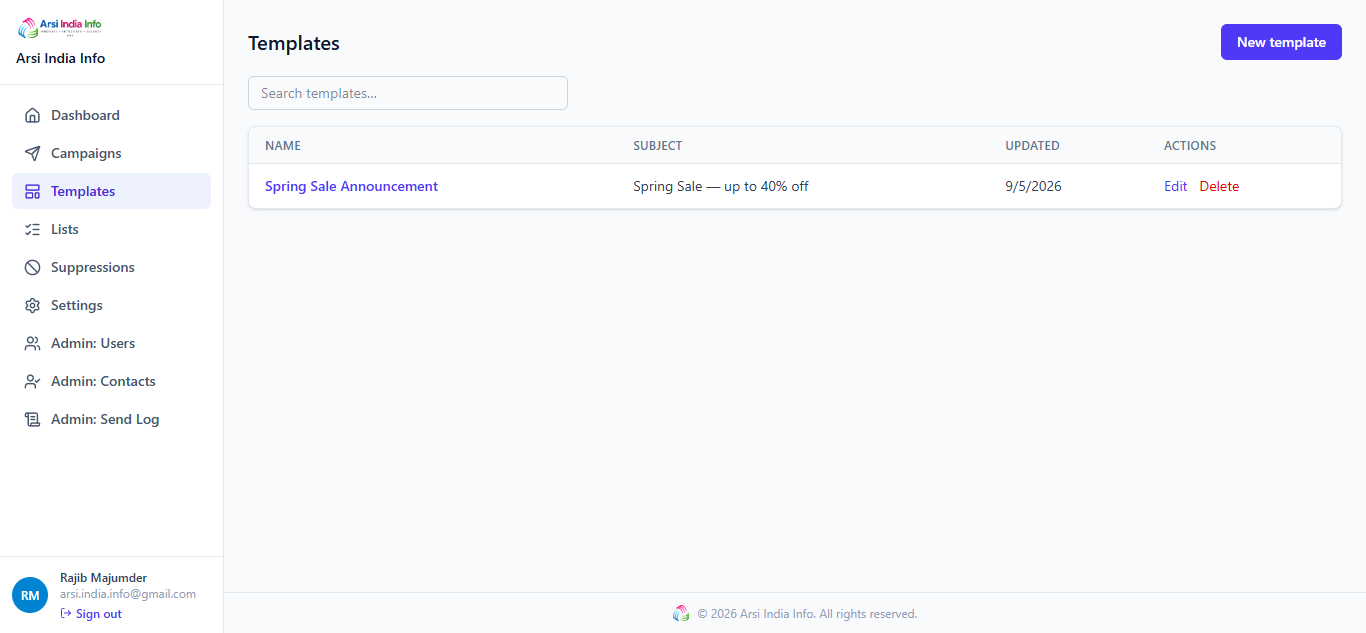
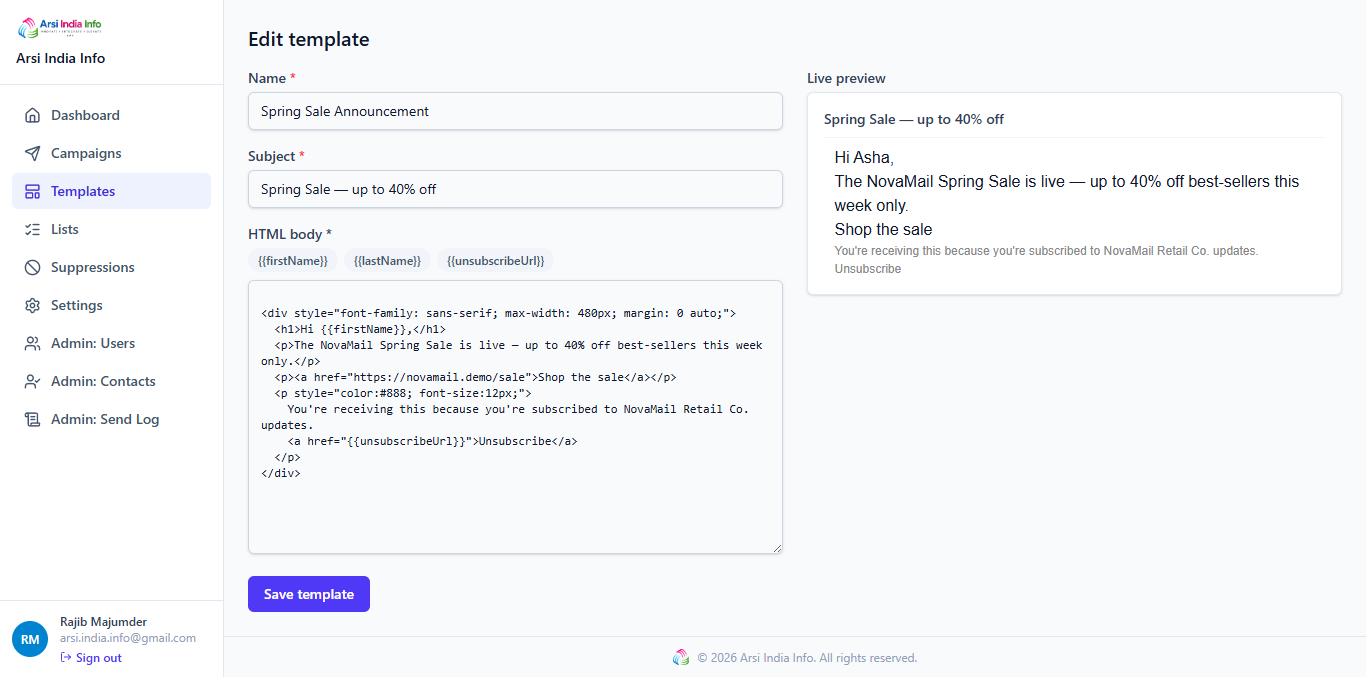
A template is the reusable email body a campaign sends — subject line, HTML body, and merge fields like {{firstName}}.
Via the Web App
- Open Templates — click + New Template or click any row to edit.
- The editor has merge-field shortcut buttons and a live preview pane rendered with sample contact data.
- Every template needs at least one unsubscribe merge tag before it can be used in a send — the editor warns you if it's missing.
Via the API
POST/templates · GET/templates · PUT/templates/:id · DELETE/templates/:id. A missing/unresolvable template on a campaign returns 404 TEMPLATE_NOT_FOUND.
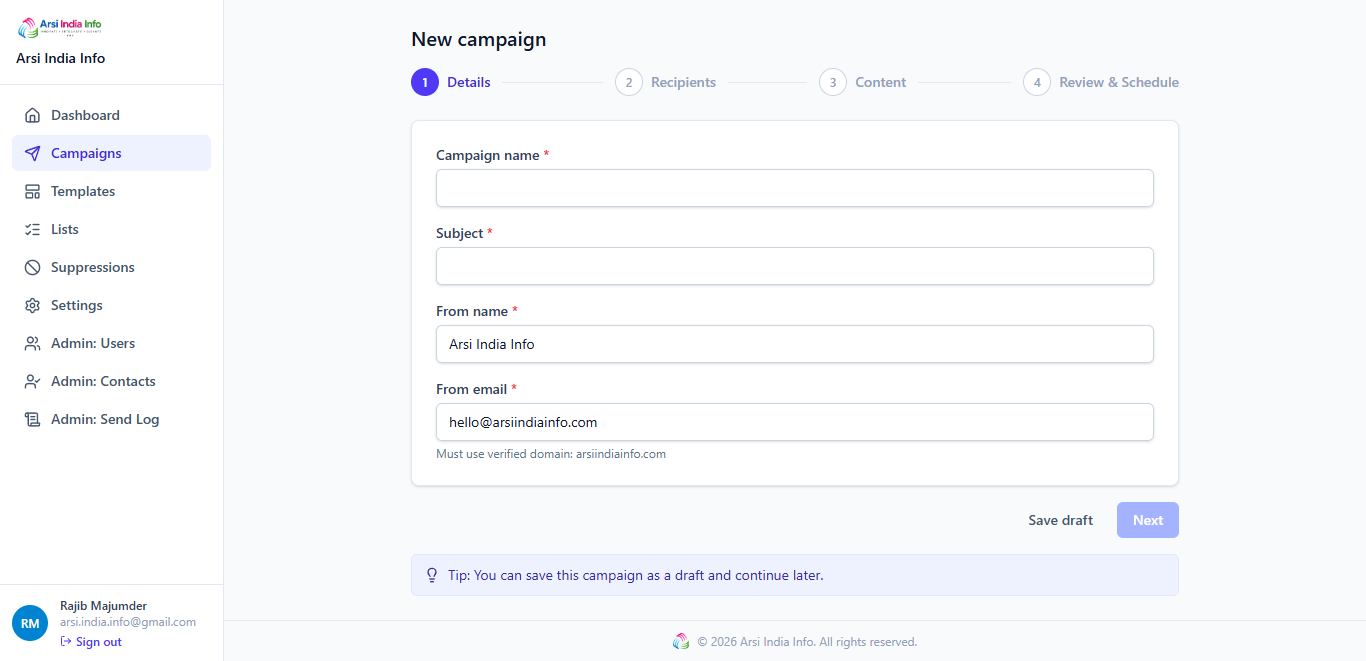
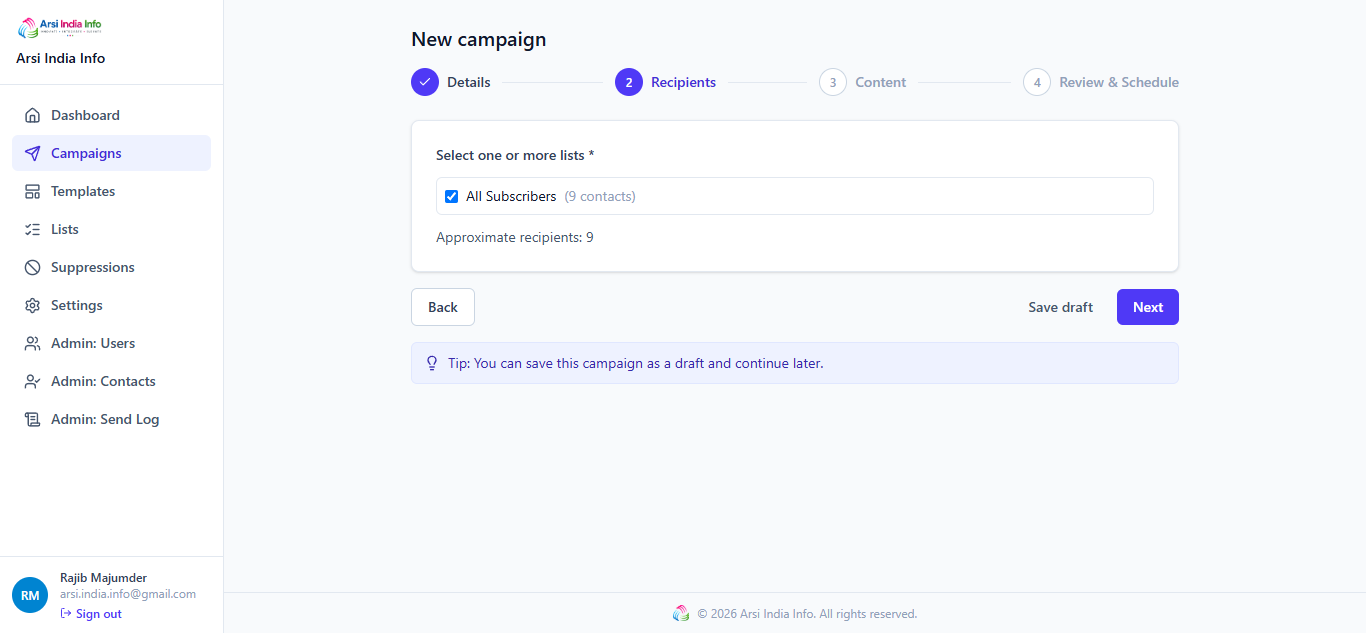
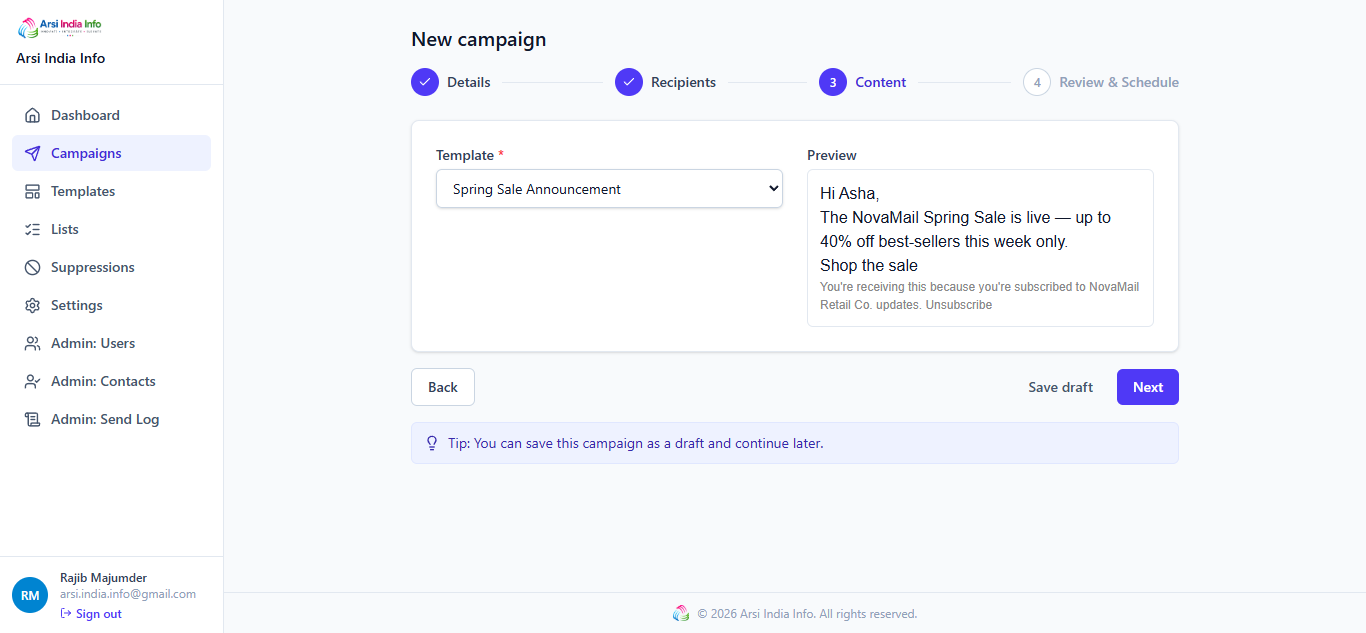
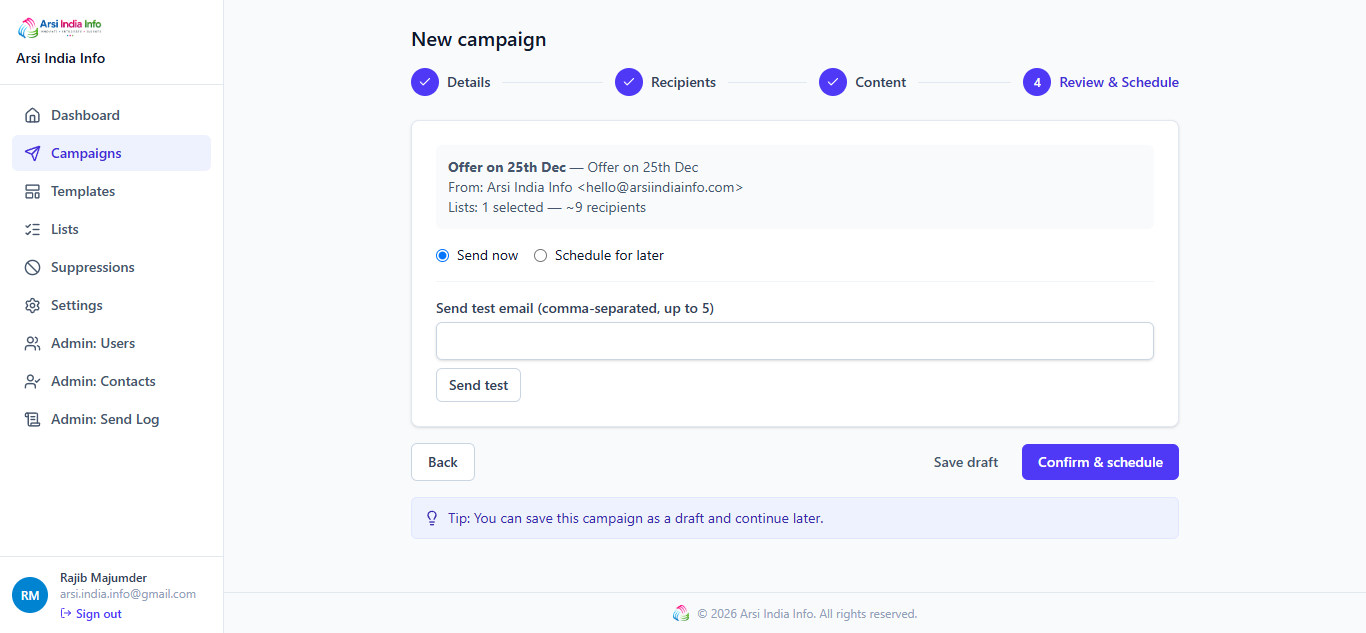
12. Creating a Campaign
The campaign wizard ties a list and a template together, with your organization's verified sender applied automatically.
Via the Web App
- Open Campaigns and click + New Campaign.
- Name the campaign, pick a list and a template — your org's sender domain (§16) is applied without asking.
- Save — the campaign starts in Draft. It isn't sent until §13.
409 VERSION_CONFLICT
instead of silently overwriting the first save.
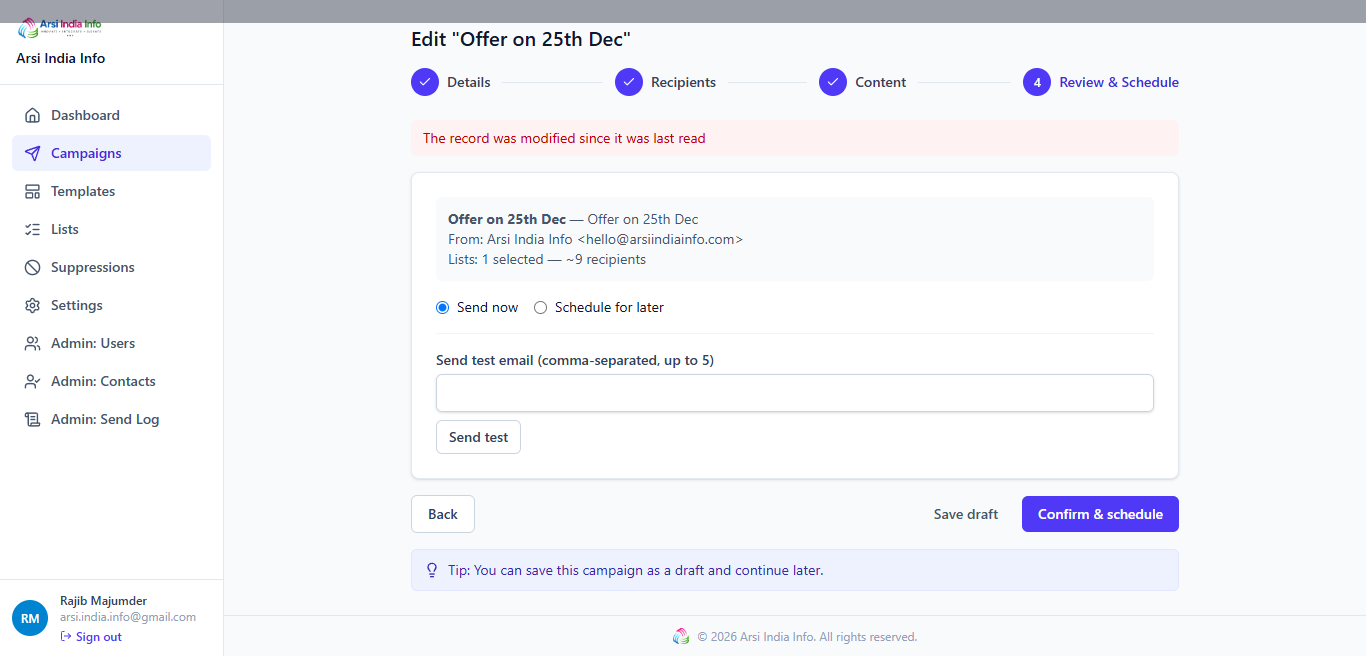
Via the API
POST/campaigns — { name, listId, templateId }. PUT/campaigns/:id — { ..., version }; a stale version returns 409 VERSION_CONFLICT.
13. Sending — the Delivery Pipeline
A campaign moves through six states; a per-recipient row inside it moves through its own, longer pipeline.
Campaign lifecycle
Via the Web App
- Open a Draft campaign and click Schedule — pick a future time, or choose Send now for an immediate queue.
- While Sending, click Pause/Resume to hold or continue dispatch, or Cancel to stop it for good.
- The campaign flips to Sent once every recipient has been dispatched.
Per-recipient delivery pipeline
Watching it happen: the analytics page (§14) polls every 15 seconds while a campaign is Sending, so the funnel and per-recipient table update live as delivery events arrive.
Via the API
POST/campaigns/:id/schedule — { sendAt? }; omit sendAt (or set it to now) for an immediate send. POST/campaigns/:id/pause · POST/campaigns/:id/resume · POST/campaigns/:id/cancel. POST/campaigns/:id/send-test — { emails: string[] }, up to 5 addresses, doesn't touch the real recipient list. GET/campaigns/:id/recipients — every recipient's current status.
409 INVALID_STATE_TRANSITION — you can't schedule a
Cancelled campaign, or pause one that's already Sent.
14. Campaign Analytics
Every number here is derived from the append-only event log described in §13 — nothing is a running counter that could drift.
Via the Web App: open a campaign to see its funnel (Queued → Sent → Delivered → Opened → Clicked, with Bounced/Complained side-counts), an opens/clicks time-series chart, and the per-recipient status table.
Via the API: GET/analytics/campaigns/:id returns the funnel counts and time series as one payload.
15. Suppressions
An address on the suppression list will never receive another send from this organization — added automatically on a bounce/complaint/unsubscribe, or manually.
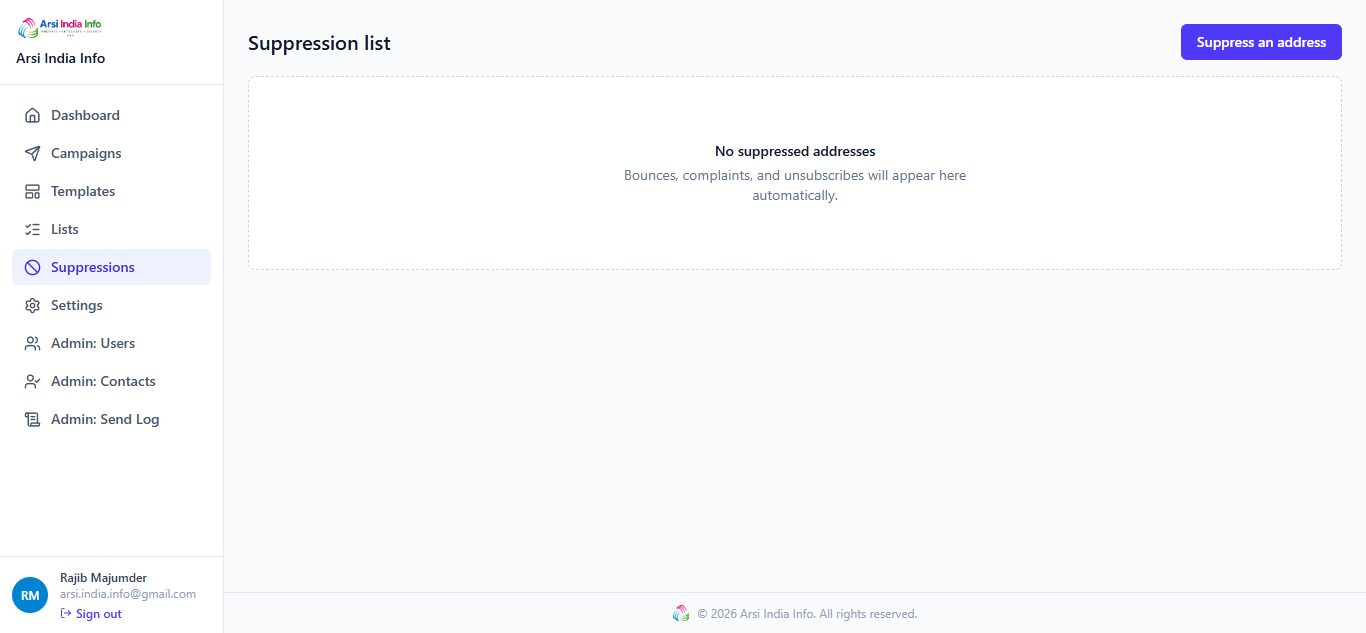
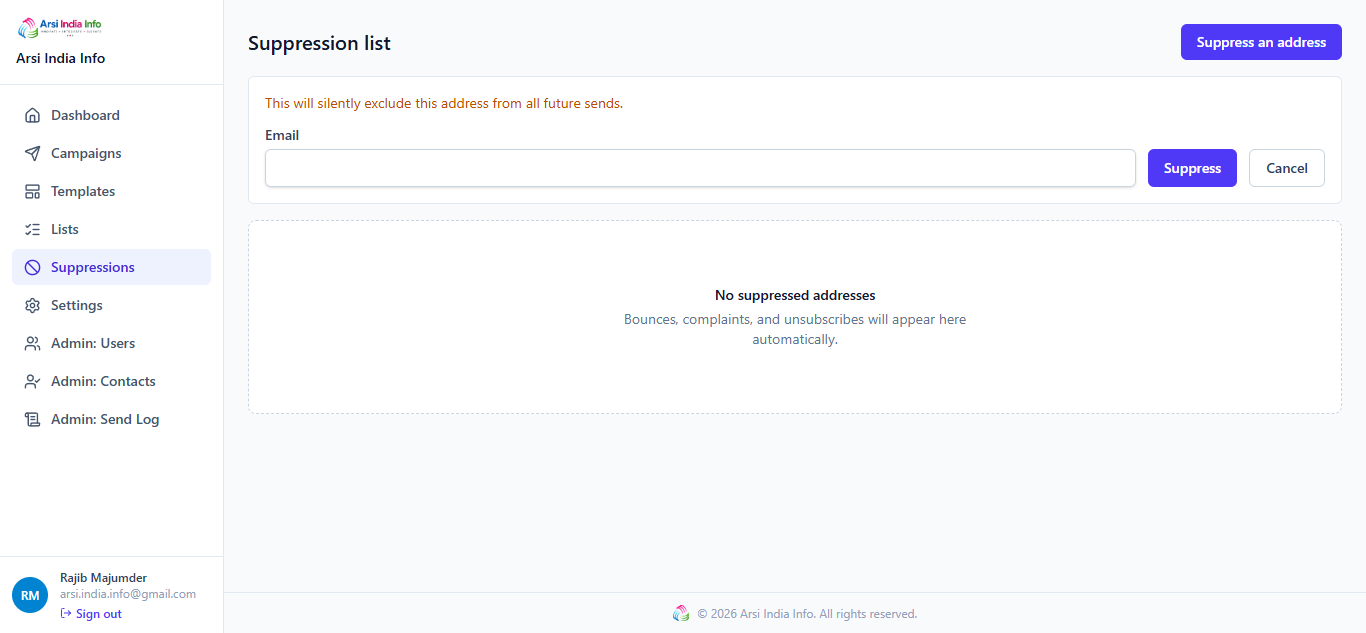
Via the API: GET/suppressions · POST/suppressions — add one manually. DELETE/suppressions/:id — remove one (use sparingly; it doesn't undo why they were suppressed).
A campaign send silently skips any recipient already on this list — no error, they're just not queued, so re-sending to a list with suppressed contacts is always safe.
16. Settings & Sender Domain
A campaign can't be scheduled until your organization's sender domain is verified. Settings has three tabs: Organization (sender domain/email), Team (your org's own members, distinct from the platform-wide Admin: Users in §17), and API / Webhooks (§20).
Via the Web App: open Settings (Admin role or above) to see your sender domain/email and its verification status; click Save to update it.
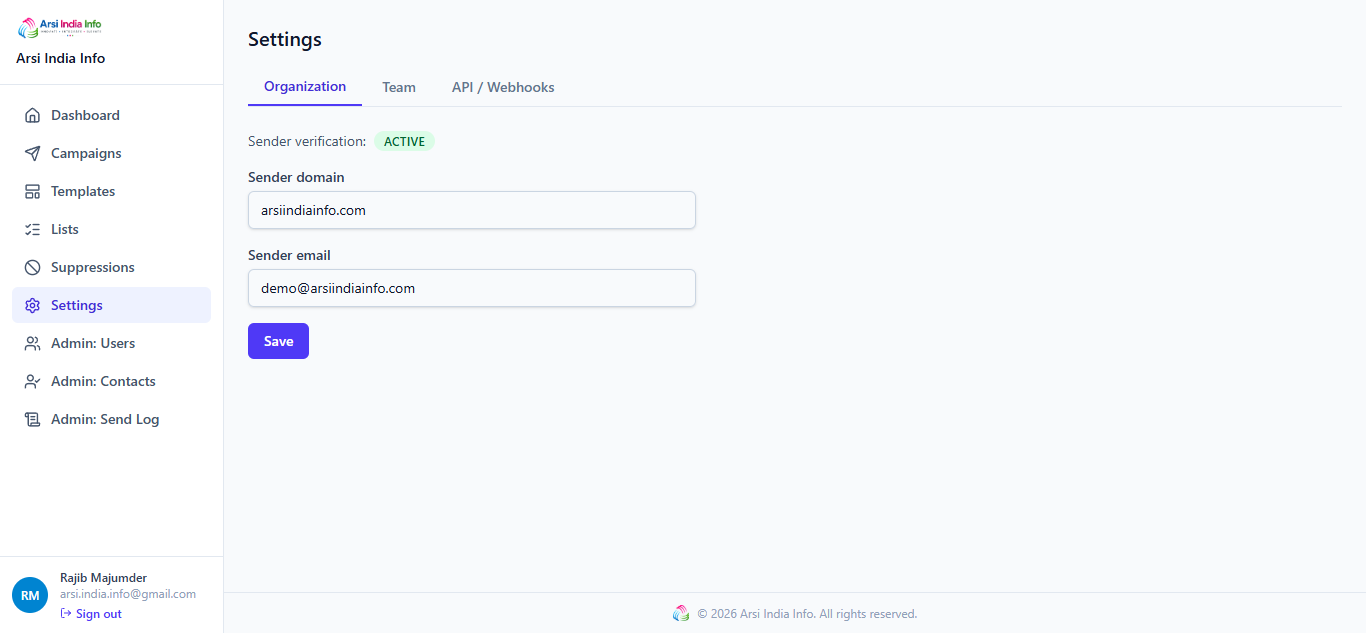
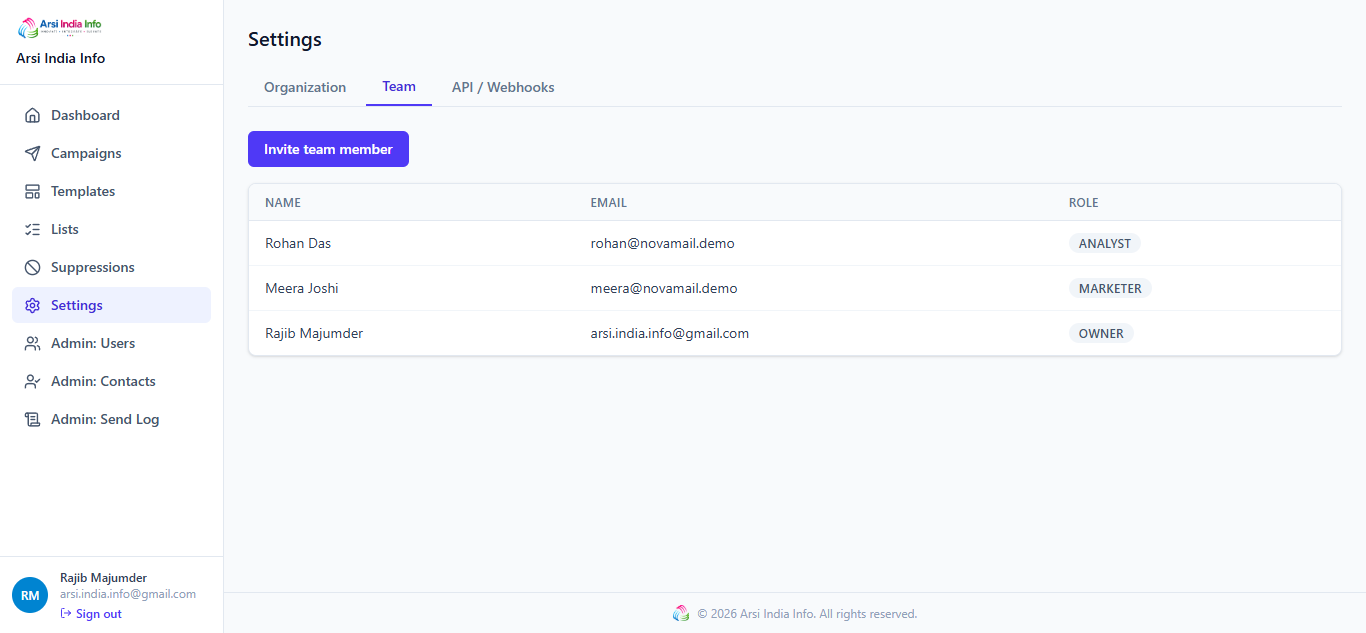
Via the API: GET/organizations/me · PUT/organizations/me · POST/organizations/me/verify-sender. Scheduling a campaign for an unverified sender returns 422 SENDER_NOT_VERIFIED.
17. Admin: Users
Sign in as the platform admin (§4) to see every user across every organization on the platform — not just your own. These endpoints return 403 FORBIDDEN_ROLE for anyone else.
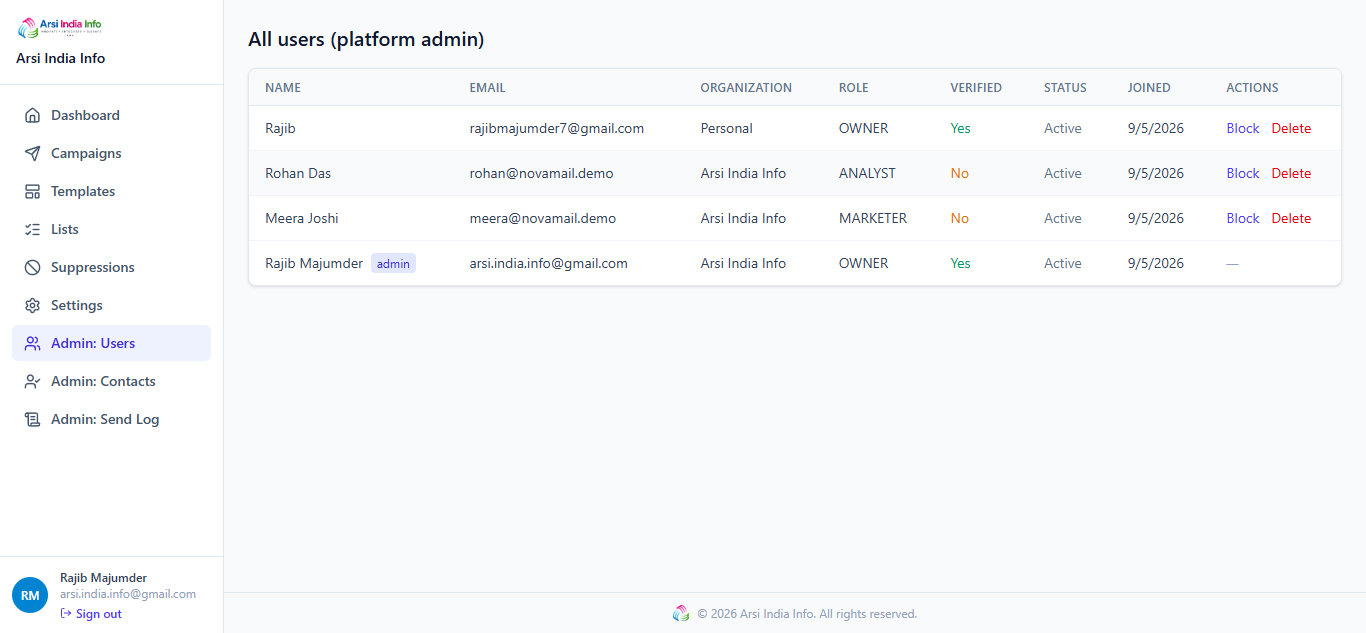
Via the API: GET/admin/users · PATCH/admin/users/:id/block · PATCH/admin/users/:id/unblock · DELETE/admin/users/:id. A blocked/deleted platform admin account is refused outright, so the platform can never end up with zero admins.
18. Admin: Contacts
Because anyone can register and import a contact list, every imported contact starts Pending until a platform admin approves or rejects it — the abuse guardrail mentioned in §4.
Via the Web App: filter by Pending/Approved/Rejected, and click Approve or Reject on any row.
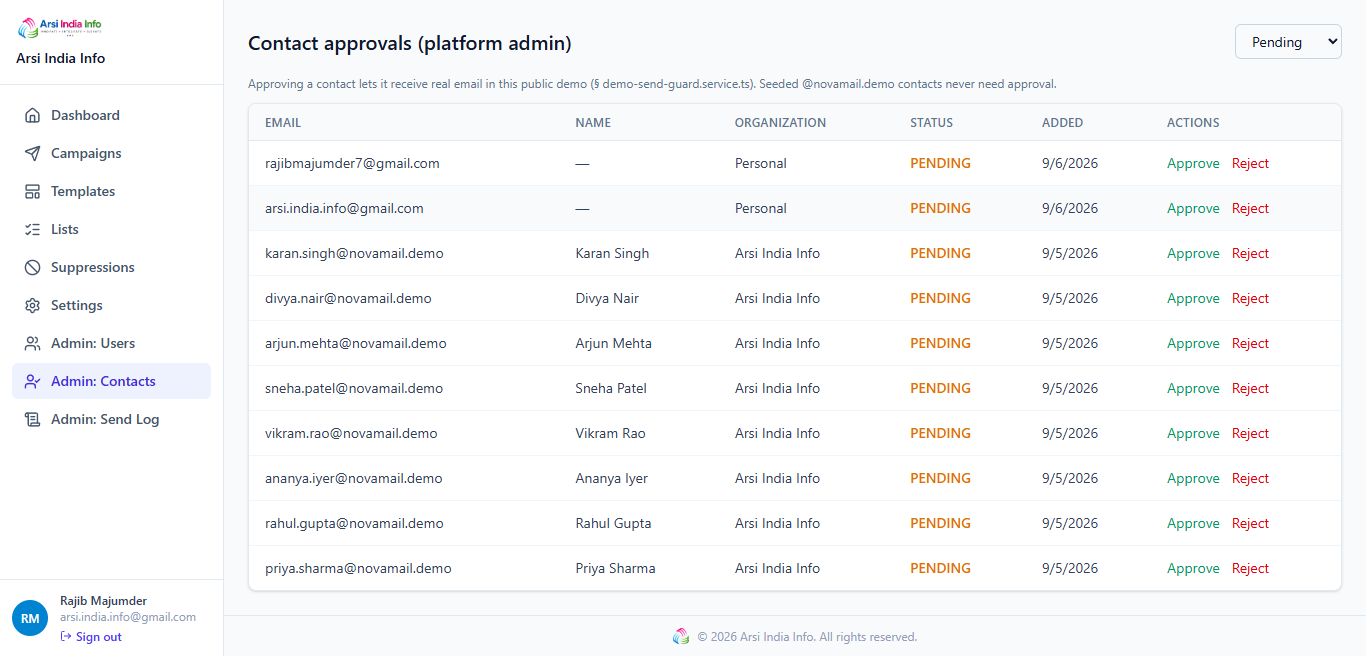
Via the API: GET/admin/contacts?status= · PATCH/admin/contacts/:id/approve · PATCH/admin/contacts/:id/reject. A campaign only ever sends to Approved contacts.
19. Admin: Send Log
Every demo send, across every organization, in one place — how a platform admin watches for abuse of the shared send quota (§4).
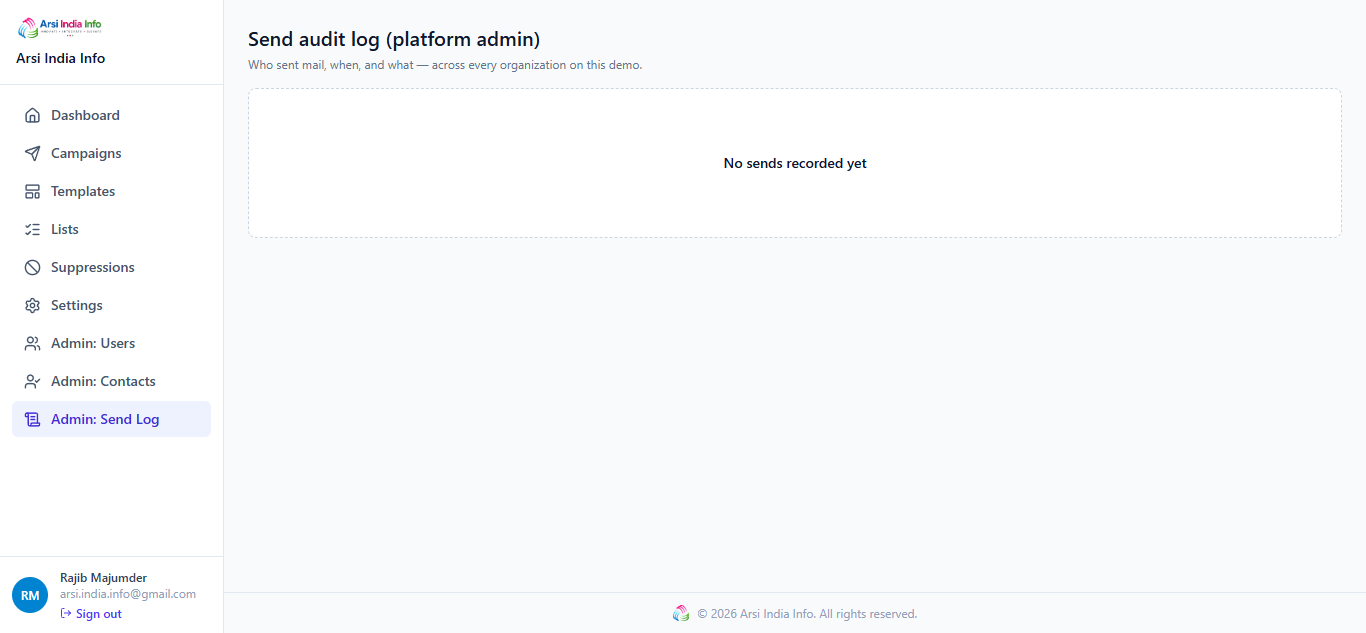
Via the API: GET/admin/send-log.
20. Webhooks & Public Tracking
Delivery events arrive two ways, both outside the normal bearer-token API:
- Inbound webhook — POST
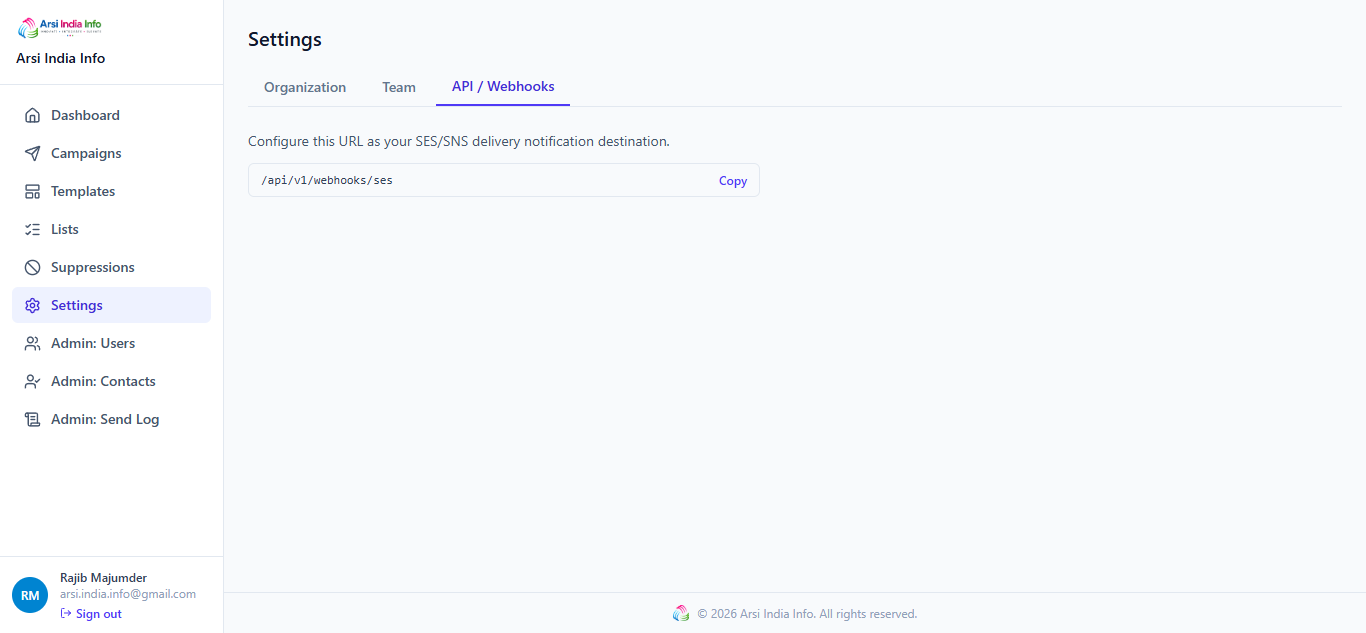
/webhooks/sesreceives an SES/SNS-shaped payload for delivered/bounced/complained. It's HMAC-signed; an invalid signature returns401 INVALID_WEBHOOK_SIGNATUREbefore anything is processed. Duplicate delivery of the same event is a no-op, not a double-count — every event carries an id the consumer de-dupes on. - Client-side tracking — the tracking pixel (
GET /t/o/:token) records anOPENEDevent; the click redirect (GET /t/c/:token) recordsCLICKED(implyingOPENEDtoo) before 302-ing to the real destination. Both are unversioned since they're embedded in already-sent emails that can't be updated after the fact.
Unsubscribe: GET/unsubscribe/:token is public and idempotent — clicking it twice is a no-op success the second time, never an error.
21. Error Responses
| HTTP | Code | Meaning |
|---|---|---|
| 400 | VALIDATION_ERROR | The request body failed validation. |
| 400 | INVALID_VERIFICATION_TOKEN | An expired/invalid email-verification token. |
| 400 | RECAPTCHA_FAILED | The reCAPTCHA check didn't pass — complete the checkbox again. |
| 401 | UNAUTHORIZED | Missing/expired token or invalid credentials. |
| 401 | INVALID_WEBHOOK_SIGNATURE | The inbound webhook's HMAC signature didn't match (§20). |
| 403 | FORBIDDEN_ROLE | Your account's role/rank can't perform this action. |
| 403 | EMAIL_NOT_VERIFIED | Sign in attempted before verifying the account (§7). |
| 403 | ACCOUNT_BLOCKED | A platform admin has blocked this account (§17). |
| 404 | CAMPAIGN_NOT_FOUND / TEMPLATE_NOT_FOUND / LIST_NOT_FOUND / CONTACT_NOT_FOUND / USER_NOT_FOUND / SUPPRESSION_NOT_FOUND / IMPORT_JOB_NOT_FOUND | Doesn't exist, or belongs to another organization (tenant isolation, §7). |
| 409 | DUPLICATE_NAME | A campaign/template/list/email that must be unique already exists. |
| 409 | VERSION_CONFLICT | A stale version on a campaign edit (§12). |
| 409 | INVALID_STATE_TRANSITION | The campaign-status change isn't allowed from its current state (§13). |
| 422 | SENDER_NOT_VERIFIED | Scheduling a send before sender-domain verification (§16). |
| 422 | SUPPRESSED_RECIPIENT | Manually adding a suppressed address back to a list-based action that doesn't allow it. |
| 429 | RATE_LIMITED | Too many requests — slow down and retry. |
| 429 | DEMO_SEND_QUOTA_EXCEEDED | This organization's non-production send quota is used up (§4). |
| 422 | DEMO_RECIPIENT_NOT_ALLOWED | Non-production sends are restricted to demo-style/verified addresses (§4). |
| 500 | INTERNAL_ERROR | An unexpected server-side error. |
22. Full Endpoint Reference
All paths (except the public tracking/unsubscribe/webhook routes noted) are relative to https://demo1.arsiindiainfo.com/api/v1.
| Method | Path | Auth | Description |
|---|---|---|---|
| POST | /auth/register | Public + reCAPTCHA | Register a new organization (§7) |
| POST | /auth/verify-email/:token | Public | Activate a registered account |
| POST | /auth/login | Public + reCAPTCHA | Sign in (§6) |
| POST | /auth/refresh | Public | Exchange a refresh token for a new pair |
| POST | /auth/logout | Bearer | Revoke a refresh token |
| GET | /users/me | Bearer | Your own profile |
| GET | /users | Admin+ | List your organization's users |
| POST | /users/invite | Admin+ | Invite a teammate |
| GET | /organizations/me | Bearer | Your organization's profile |
| PUT | /organizations/me | Admin+ | Update sender email/domain (§16) |
| POST | /organizations/me/verify-sender | Admin+ | (Re-)check sender-domain verification |
| GET | /lists | Bearer | List your organization's contact lists |
| POST | /lists | Marketer+ | Create a list |
| GET | /lists/:id | Bearer | Get one list |
| DELETE | /lists/:id | Marketer+ | Delete a list |
| GET | /lists/:id/contacts | Bearer | List a list's contacts |
| POST | /lists/:id/contacts | Marketer+ | Add one contact |
| DELETE | /lists/:id/contacts/:contactId | Marketer+ | Remove a contact from a list |
| POST | /lists/:id/imports/presign | Marketer+ | Get a presigned CSV upload URL (§10) |
| POST | /lists/:id/import | Marketer+ | Start processing an uploaded CSV |
| GET | /lists/:id/imports/:jobId | Bearer | Poll an import job's progress |
| GET | /templates | Bearer | List templates |
| POST | /templates | Marketer+ | Create a template |
| GET | /templates/:id | Bearer | Get one template |
| PUT | /templates/:id | Marketer+ | Update a template |
| DELETE | /templates/:id | Marketer+ | Delete a template |
| GET | /campaigns | Bearer | List campaigns |
| POST | /campaigns | Marketer+ | Create a campaign (§12) |
| GET | /campaigns/:id | Bearer | Get one campaign |
| PUT | /campaigns/:id | Marketer+ | Update a draft campaign |
| DELETE | /campaigns/:id | Marketer+ | Delete a draft campaign |
| POST | /campaigns/:id/send-test | Marketer+ | Preview to up to 5 test addresses |
| POST | /campaigns/:id/schedule | Marketer+ | Schedule or send now (§13) |
| POST | /campaigns/:id/pause | Marketer+ | Pause a Sending campaign |
| POST | /campaigns/:id/resume | Marketer+ | Resume a Paused campaign |
| POST | /campaigns/:id/cancel | Marketer+ | Cancel not-yet-dispatched sends |
| GET | /campaigns/:id/recipients | Bearer | Per-recipient delivery status |
| GET | /analytics/overview | Bearer | Dashboard KPI row (§9) |
| GET | /analytics/campaigns/:id | Bearer | Funnel + time series for one campaign (§14) |
| GET | /suppressions | Bearer | List suppressed addresses (§15) |
| POST | /suppressions | Marketer+ | Add one manually |
| DELETE | /suppressions/:id | Marketer+ | Remove one |
| GET | /admin/users | Platform admin | Every user, every organization (§17) |
| PATCH | /admin/users/:id/block | Platform admin | Block a user |
| PATCH | /admin/users/:id/unblock | Platform admin | Unblock a user |
| DELETE | /admin/users/:id | Platform admin | Delete a user |
| GET | /admin/contacts | Platform admin | Imported contacts awaiting moderation (§18) |
| PATCH | /admin/contacts/:id/approve | Platform admin | Approve a contact |
| PATCH | /admin/contacts/:id/reject | Platform admin | Reject a contact |
| GET | /admin/send-log | Platform admin | Every demo send, every organization (§19) |
| POST | /webhooks/ses | HMAC-signed | Inbound SES/SNS delivery events (§20) |
23. FAQ & Troubleshooting
The reCAPTCHA checkbox won't check, or my login/registration is rejected
Make sure third-party content isn't blocked by a privacy extension — the widget loads a script from google.com. If the checkbox works but submission still fails, the token likely expired (valid for about two minutes) — the form resets the widget automatically; complete it again and resubmit.
I registered but never got a verification email
In non-production environments, verification emails go to Mailhog, not a real inbox — ask whoever manages this deployment where to view it. The account is genuinely unusable (§7) until that link is clicked.
I sent a campaign but the recipient count is lower than my list's contact count
Two reasons this is expected: suppressed addresses (§15) are silently skipped, and imported contacts that haven't been approved yet by a platform admin (§18) never receive a send.
Why can't I resume a Cancelled campaign?
Cancelled is terminal by design (§13) — Paused is the only "stopped but resumable" state. Create a new campaign instead.
Can I make myself a platform admin?
No — isPlatformAdmin is set only via seed/ops, never through any endpoint or UI action, by design.
Where do I see the full request/response schema for every field?
The interactive Swagger UI at /api/docs documents every field, validation rule, and example — it's disabled on the public demo (ENVIRONMENT === 'production' turns it off), so run the project locally (see the repo's README) to browse it.

docs/ folder
(data model, deployment, testing).
Source code licensed under MIT · name & logo protected under TRADEMARK.md
arsiindiainfo.com