Secure Cloud Document Manager — User Guide
A step-by-step manual for signing in, browsing and uploading documents, sharing a folder or a single file with a teammate or the outside world, and staying under your storage quotas — for every role on the platform, employee through admin.
1. Welcome
Secure Cloud Document Manager is a private-by-default file storage and sharing platform for a fictional company, Meridian Consulting Group — nested folders, drag-and-drop upload with per-type icons and thumbnails, fine-grained sharing (both folders and individual files) with internal teammates or a revocable public link, a Trash with a 30-day restore window, and per-user storage quotas. This guide walks through the platform exactly as an employee, manager, or admin would use it: the web app first, and the underlying API for anyone integrating or testing programmatically.
2. Two Ways to Use This Platform
There's a real, working web application in front of this platform — you don't need to write any code or run any HTTP requests by hand to try it out.
Web App Recommended
Open https://demo2.arsiindiainfo.com, sign in with a demo account (§4), and click through Browse, Dashboard, and Trash — plus Users and Audit Log if you're an admin. §5 breaks down exactly which screens each role sees.
Raw API / Swagger
Everything the web app does, it does by calling the same JSON API documented in §3 onward. Use this if you're integrating programmatically, testing with curl/Postman, or want exact request/response shapes via the interactive Swagger UI (local dev only).
3. Web App & API Reference
| Resource | URL |
|---|---|
| Web app | https://demo2.arsiindiainfo.com |
| API base URL | https://demo2.arsiindiainfo.com/api/v1 |
| Interactive Swagger docs | GET/api/docs (non-production environments only) |
| Public share links | https://demo2.arsiindiainfo.com/s/:token — no login required (§12) |
Response envelope
// success
{
  "success": true,
  "data": { /* the actual result */ }
}

// failure
{
  "success": false,
  "error": { "code": "VALIDATION_ERROR", "message": "..." }
}
4. Demo Accounts
The demo seeder creates a full Meridian Consulting Group team — one admin, one manager, one employee — so you can try every role immediately. Every account shares the same password:
| Role | Password | |
|---|---|---|
| Admin | admin@meridian.test | Passw0rd! |
| Manager | manager@meridian.test | |
| Employee | employee@meridian.test |
5. Which Screen Is For Which Role
The web app shows the same core navigation to every signed-in user — what any individual folder or document allows depends on the permission granted on it (§12), not on account role. Role only gates two admin-only screens.
| Screen | Employee | Manager | Admin | What it's for |
|---|---|---|---|---|
| Browse | ✅ | ✅ | ✅ sees every folder | Home page — folders, recent documents, quick actions (§9). |
| Dashboard | ✅ | ✅ | ✅ | Quotas, recent activity, folders shared with you (§14). |
| Trash | ✅ own only | ✅ own only | ✅ everyone's | Restore or permanently delete (§15). |
| Users | — | — | ✅ | Invite, change role/status, delete accounts (§16). |
| Audit Log | — | — | ✅ | Every sensitive action, platform-wide (§17). |
6. Signing In
Via the Web App
- Open https://demo2.arsiindiainfo.com — you land on the sign-in page.
- Enter one of the demo emails (§4) and
Passw0rd!, or your own account (§7). - Tick the reCAPTCHA checkbox.
- Click Sign in. You land on Browse (§9).
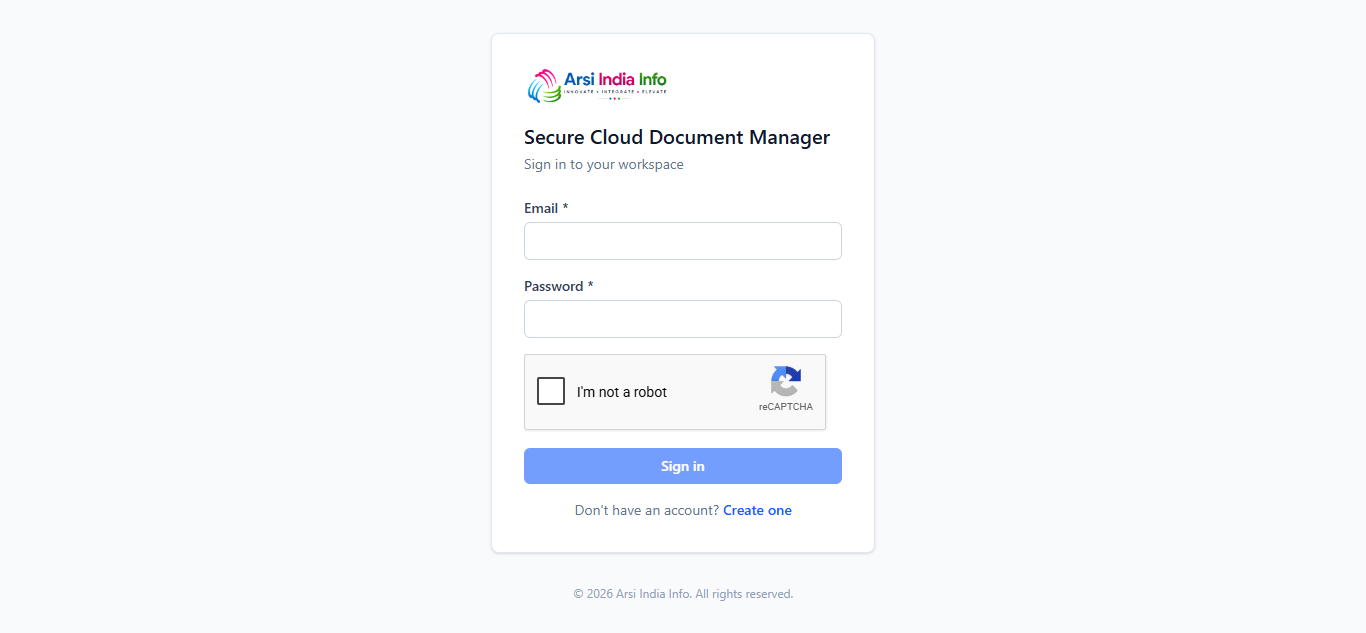
POST /auth/login and POST /auth/register are
the only endpoints anyone can call without already being logged in —
the obvious targets for scripted/credential-stuffing traffic. Both
require a Google reCAPTCHA v2 check, verified server-side, before the
request is accepted.
Via the API
POST https://demo2.arsiindiainfo.com/api/v1/auth/login
Content-Type: application/json

{
  "email": "admin@meridian.test",
  "password": "Passw0rd!",
  "recaptchaToken": "03AGdBq27..."
}
{
  "success": true,
  "data": {
    "accessToken": "eyJhbGciOi...",
    "refreshToken": "9ba3b6cf3c...",
    "user": { "id": 1, "name": "Ava Admin", "email": "admin@meridian.test", "role": "ADMIN", "status": "ACTIVE" }
  }
}
Copy the accessToken and send it on every subsequent request: Authorization: Bearer eyJhbGciOi...
7. Creating Your Own Account
Anyone can self-register — a new account starts as a Manager with no folders of their own, so creating a root folder (§10) is also its first action.
Via the Web App
- Click Create one on the sign-in page.
- Fill in your name, email, and password, and complete the reCAPTCHA.
- Submit — a verification link is emailed to you. Signing in before clicking it returns
403 EMAIL_NOT_VERIFIED. - Click the link (or open /verify-email/:token directly), then sign in (§6).
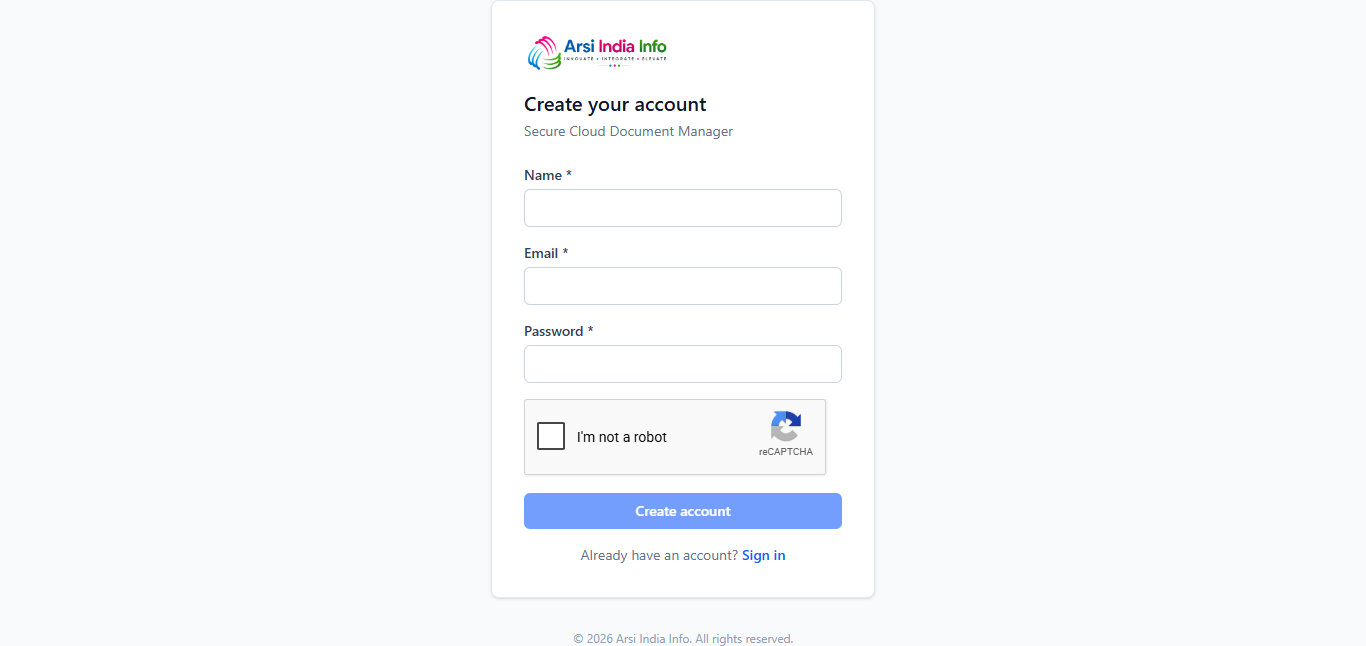
Via the API: POST/auth/register — { name, email, password, recaptchaToken }. POST/auth/verify-email/:token.
8. Your Session & Signing Out
Access tokens are short-lived. The web app quietly exchanges the refreshToken for a new pair whenever a request comes back 401 — you won't see a token expire while using the app.
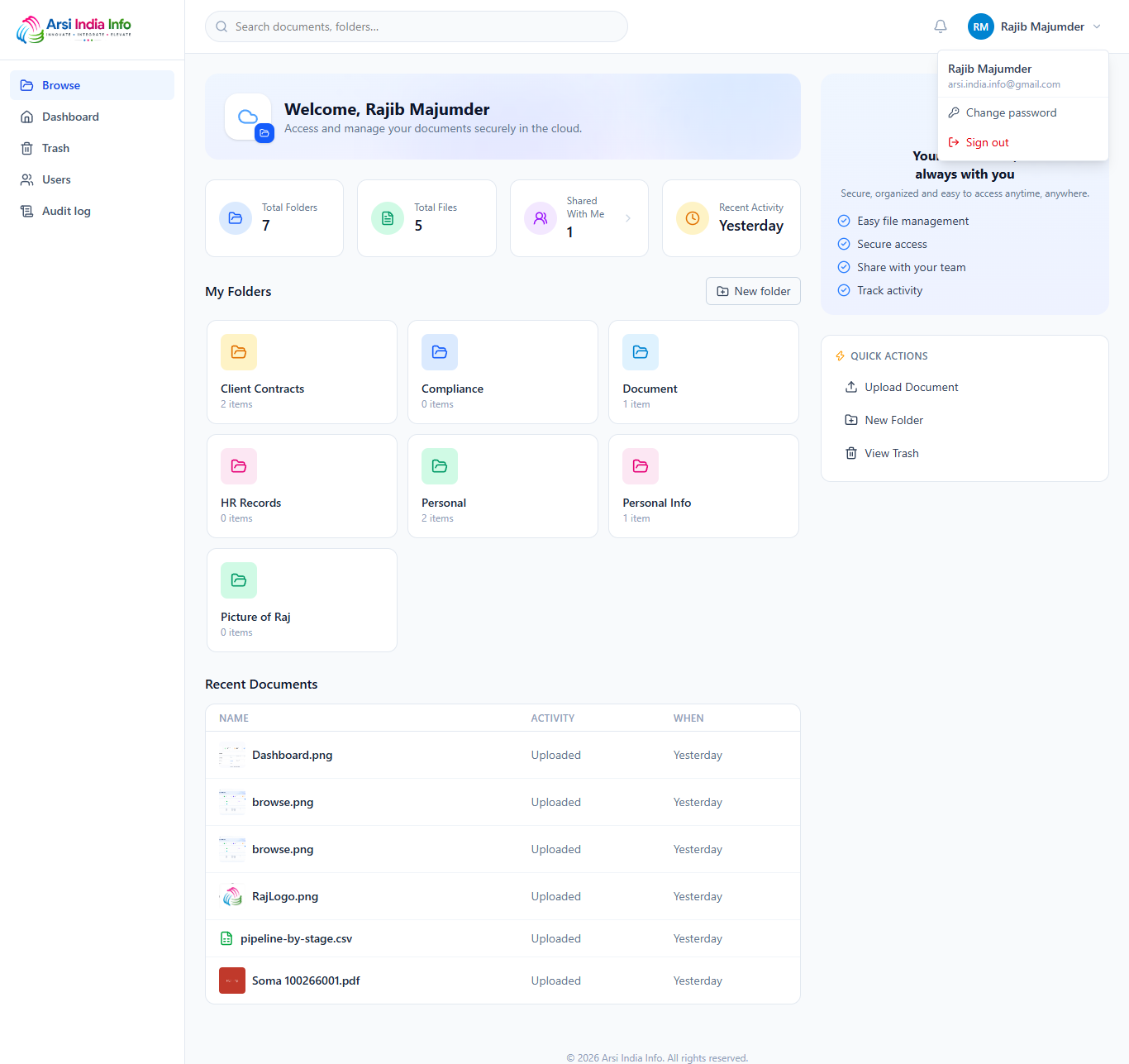
Via the Web App: click your avatar (top right) → Sign out, or Change password to update your own credentials. Via the API: POST/auth/refresh · POST/auth/logout · PUT/users/me/password.
9. The Browse Page (Home)
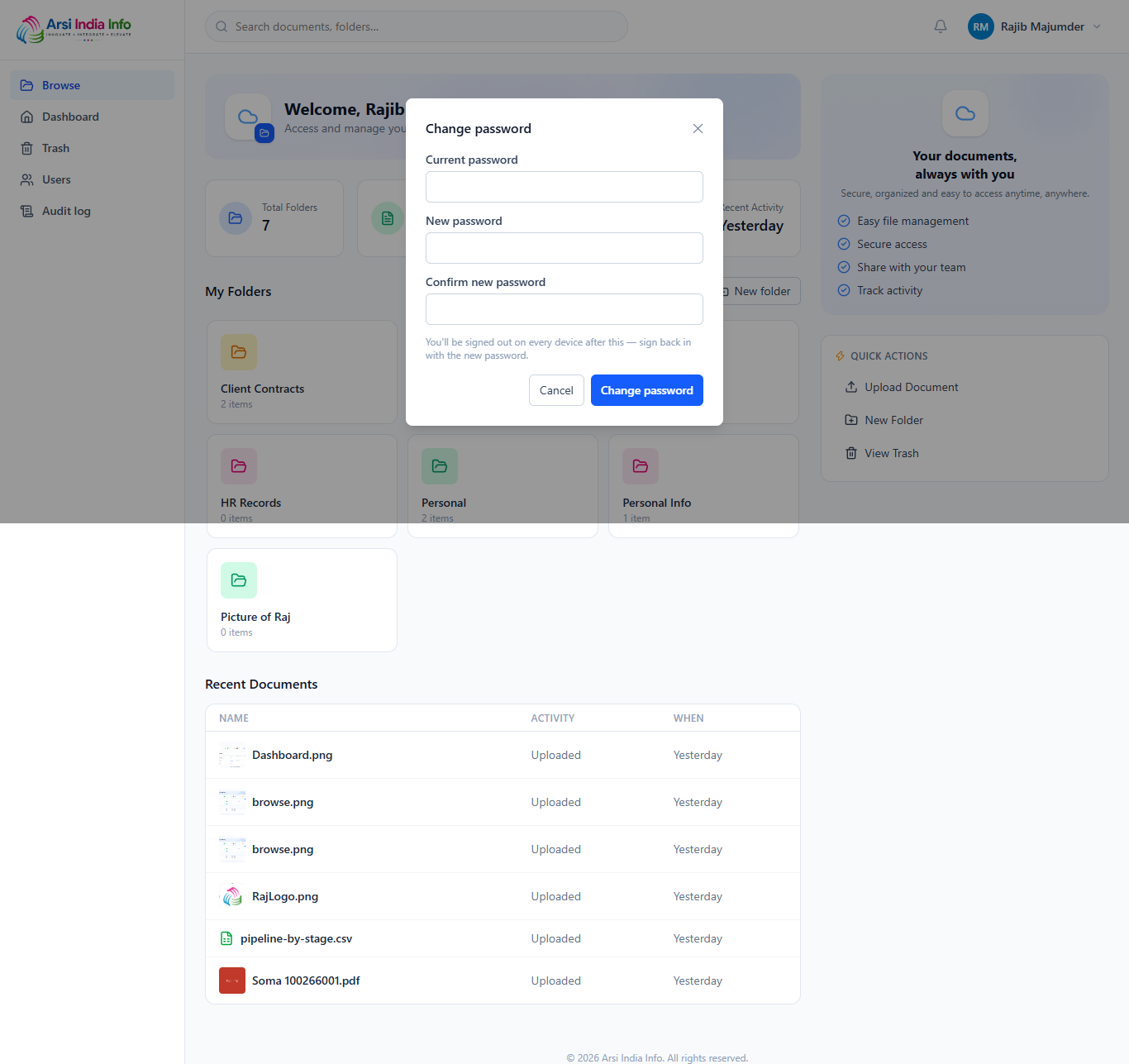
Browse is the landing page after sign-in — a welcome banner, live stat cards, your folders as a colorful grid, a Recent Documents table, and a Quick Actions panel.
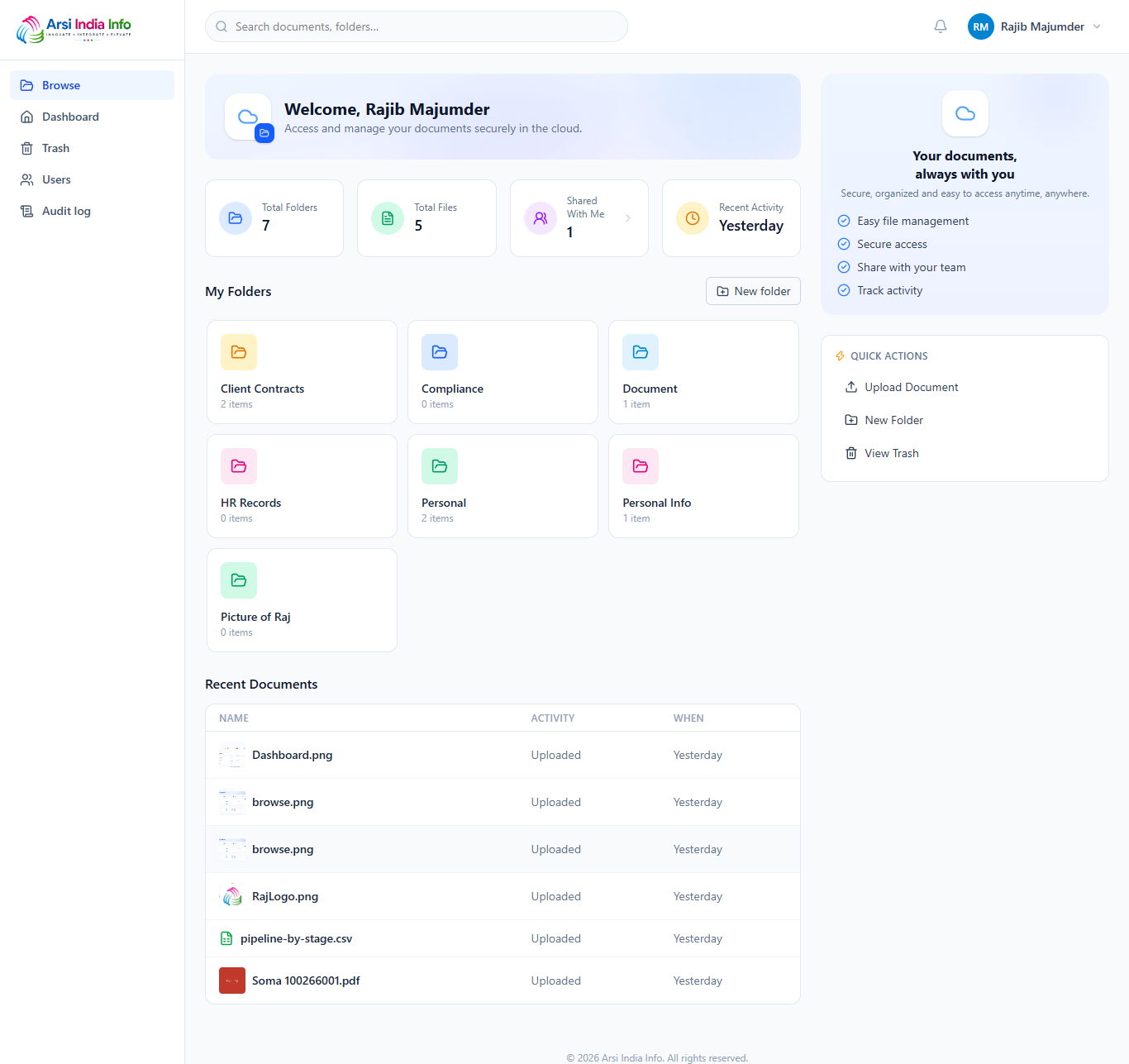
Via the API: GET/folders/children (no id segment = root) returns your accessible top-level folders; GET/dashboard (§14) backs the stat cards and Recent Documents table.
10. Folders
Via the Web App
- Click New folder from Browse or from inside any folder you can edit.
- Click a folder card to open it — Rename and Delete appear on hover; Share is always visible (§12).
- Deleting moves it (and everything inside it) to Trash (§15) — nothing is gone for good yet.
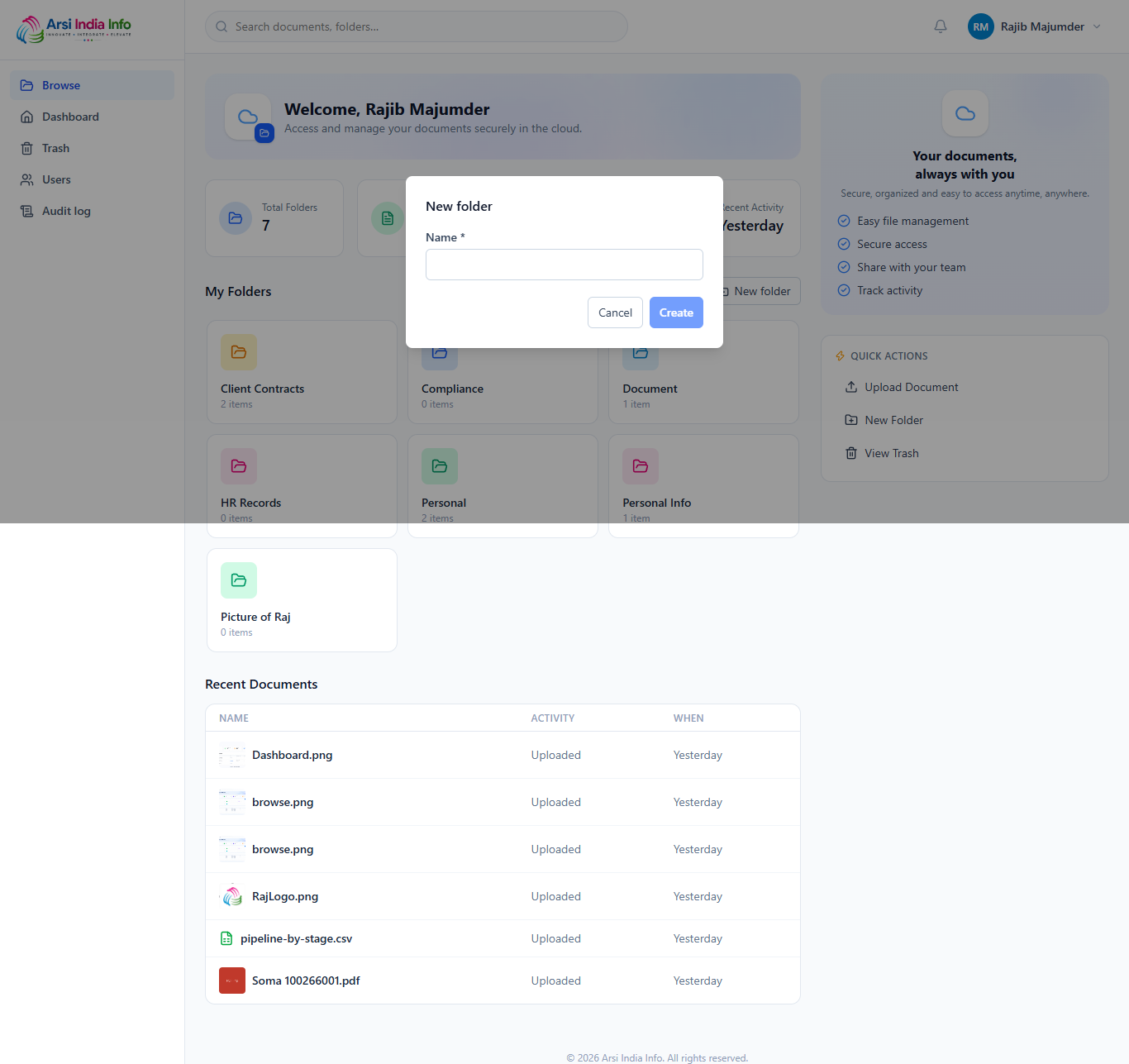
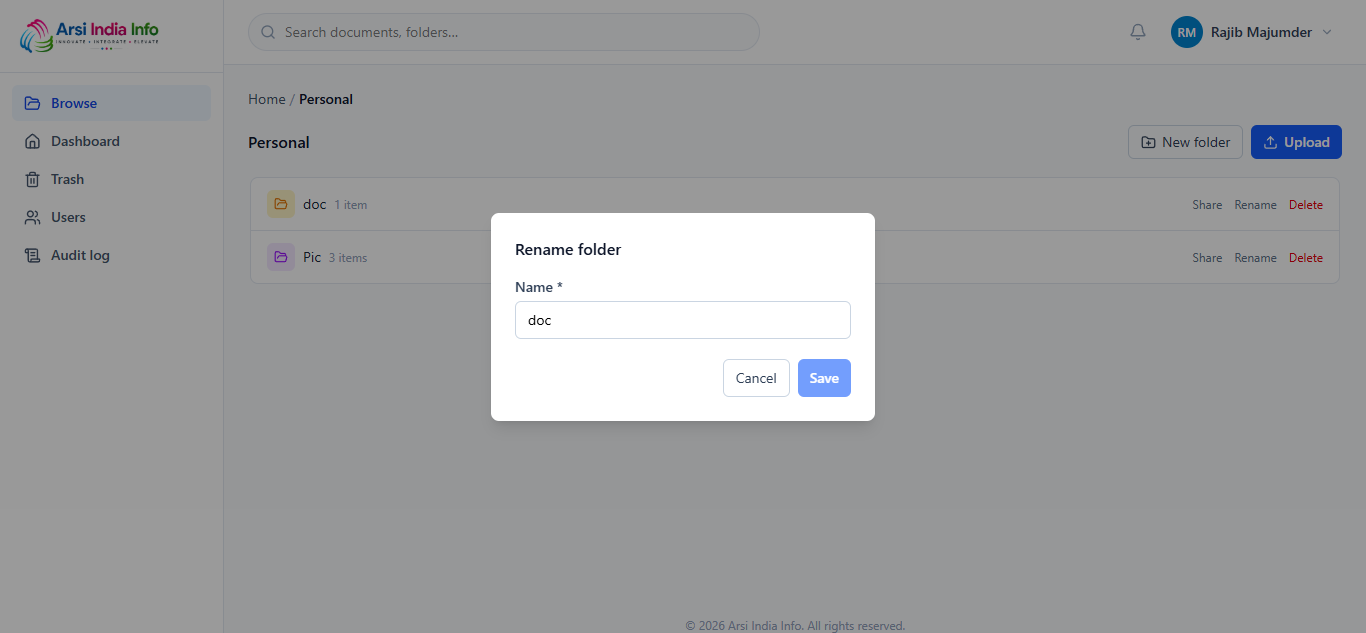
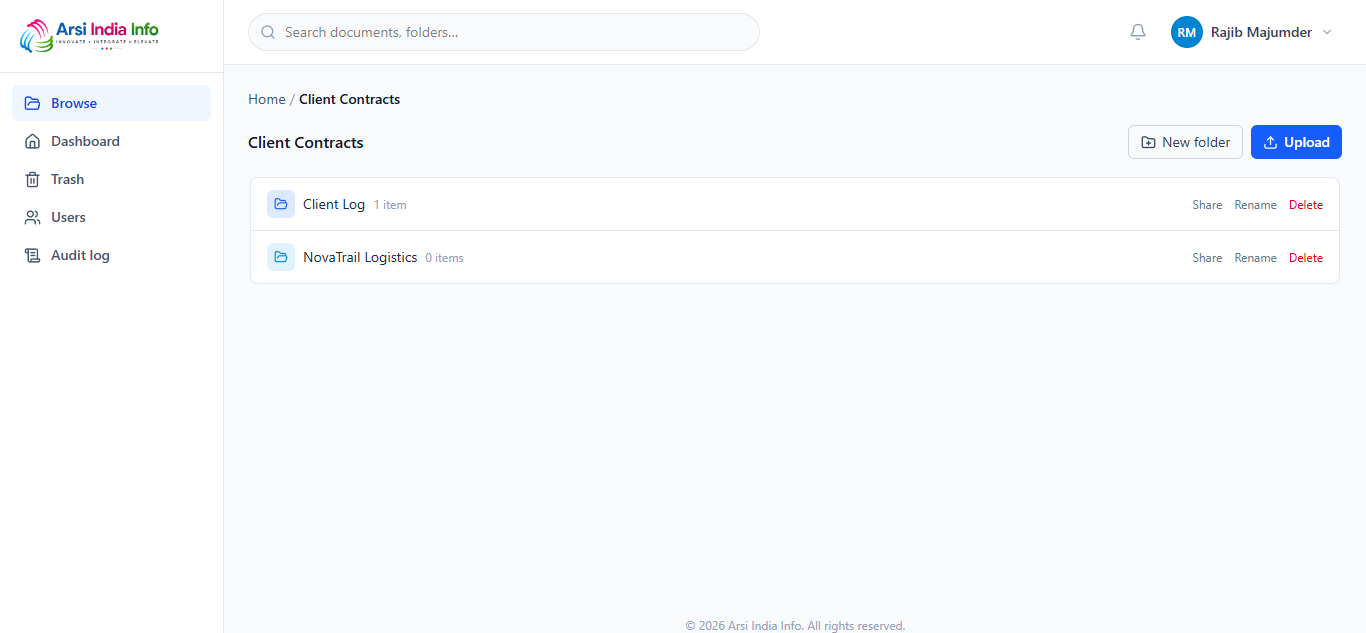
Via the API
POST/folders — { name, parentFolderId? }. A duplicate name in the same parent returns 409 DUPLICATE_NAME; over the 20-folder quota (§14) returns 409 FOLDER_QUOTA_EXCEEDED. GET/folders/:id/children · PUT/folders/:id · DELETE/folders/:id.
11. Uploading & Viewing Documents
Via the Web App
- Inside a folder, click Upload or drag files onto the page.
- Each file shows its type icon while uploading; once processed, a real thumbnail replaces the icon for images and PDFs.
- Click a document to open its detail panel — Details and Preview tabs, plus Download, Share, Upload new version, and Delete.
400 FILE_TOO_LARGE, an unsupported type returns
400 UNSUPPORTED_FILE_TYPE.
Via the API
Upload is a two-step, direct-to-S3 flow — the API server never sees the file bytes:
- POST
/documents/uploads/initiate—{ folderId, fileName, mimeType, sizeBytes }returns a presigned PUT URL. - Upload the file straight to that URL, then POST
/documents/uploads/complete—{ folderId, s3Key, name, checksumSha256 }to finalize.
GET/documents/:id/download · GET/documents/:id/preview · GET/documents/:id/thumbnail — each returns a short-lived presigned URL, never the file itself. POST/documents/:id/versions/initiate/complete — upload a new version of an existing document.
12. Sharing — Documents and Folders
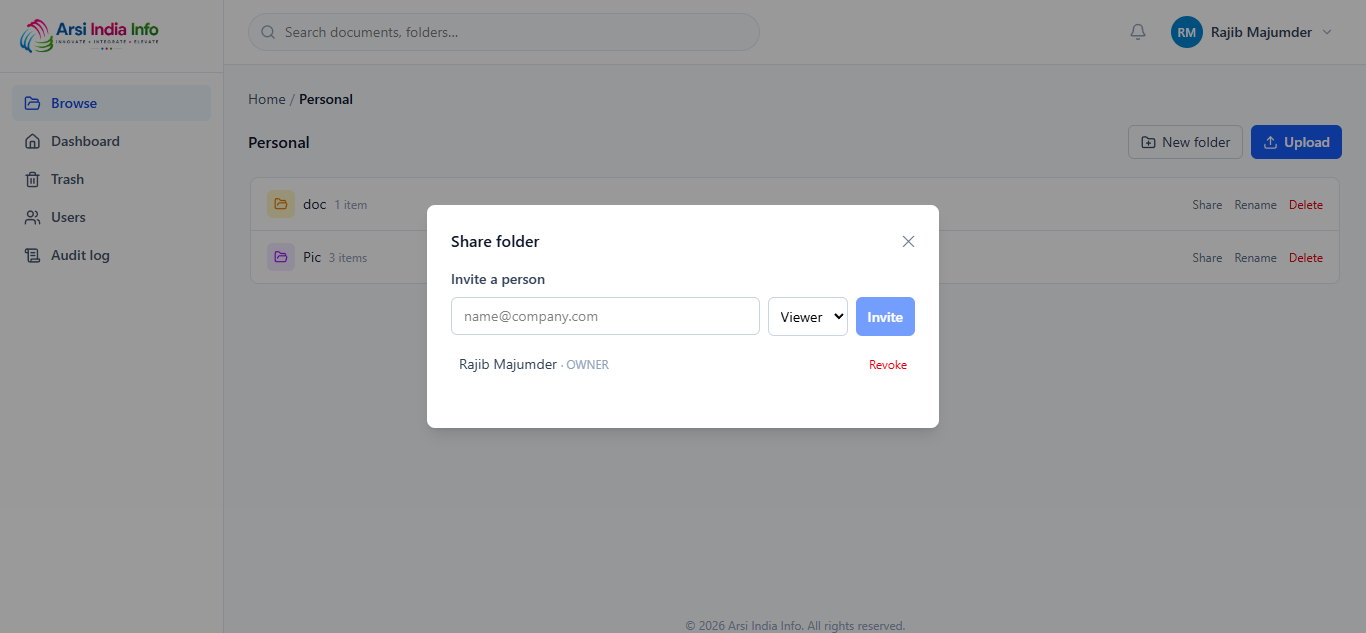
Both a folder and an individual document can be shared the same way: invite a teammate by email at Viewer/Editor/Owner, or — for documents only — generate a revocable, expiring public link that needs no account at all.
Via the Web App
- Click Share on any folder card or document row.
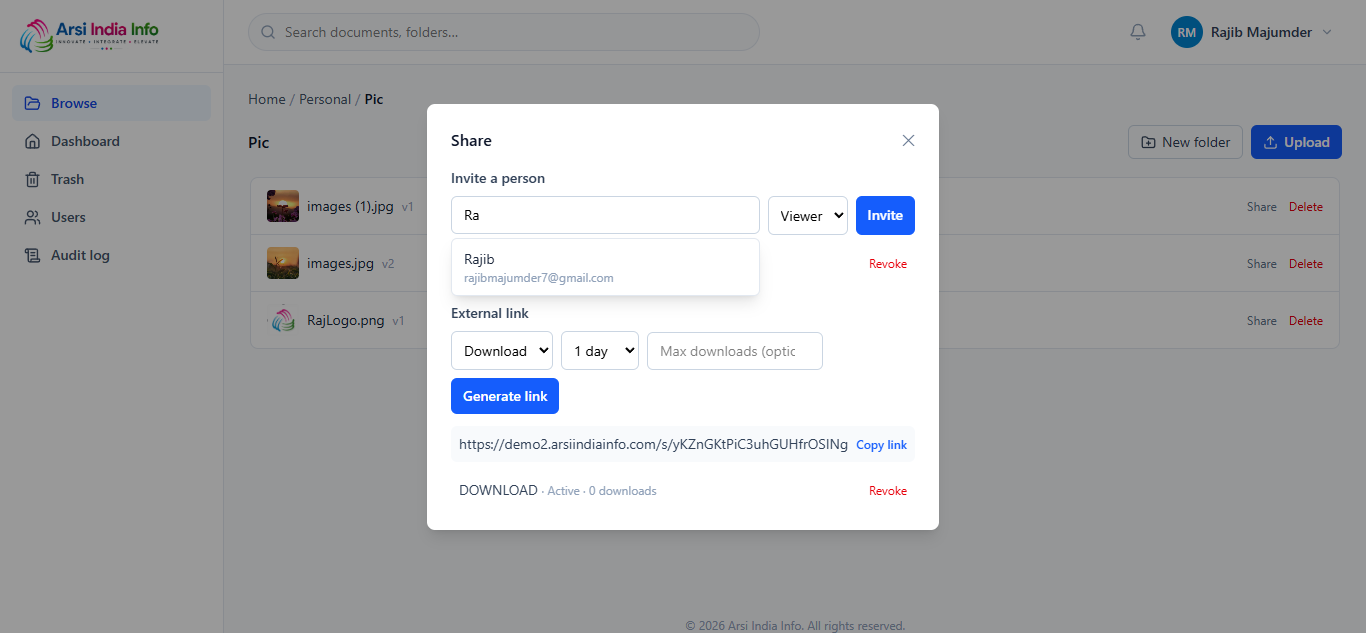
- Under Invite a person, start typing a name or email — matching teammates appear in a dropdown; click one to fill it in, pick a permission, and click Invite.
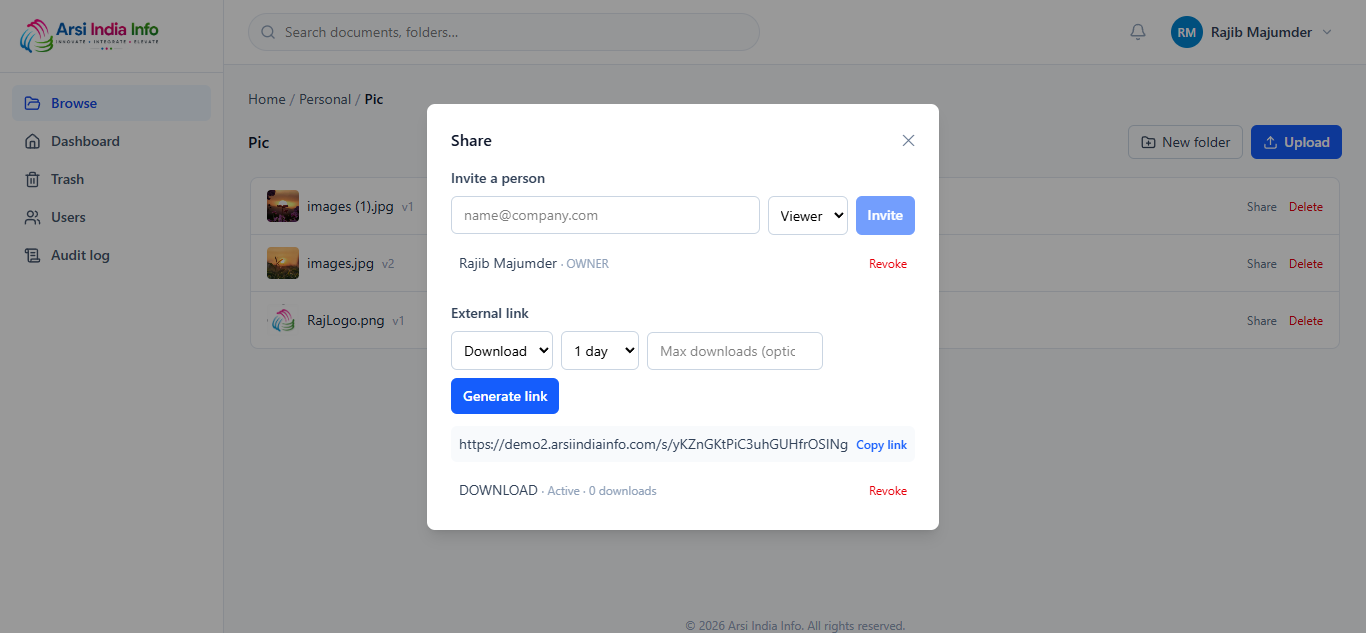
- Documents only: under External link, choose View or Download, an expiry (1 or 7 days), and an optional max-download cap, then click Generate link.
- Anyone already granted access is listed with a Revoke link next to their name.
409 LAST_OWNER instead of leaving the item ownerless.
Opening a public link with no account at all
A share link opens a standalone page — no app header, no sign-in — showing the file name and size, a Download (or, for View links, an inline preview) button. Revoking it from the Share dialog, or letting it expire or hit its download cap, immediately breaks the link (409 SHARE_LINK_REVOKED / SHARE_LINK_EXPIRED / SHARE_LINK_LIMIT_REACHED).
Via the API
POST/folders/:id/permissions / /documents/:id/permissions — { email, permission }. GET the same path lists current grants; DELETE .../permissions/:userId revokes one. POST/documents/:id/share-links — { permission, expiresInHours, maxDownloads? }. GET/s/:token is the public, unauthenticated resolve — no bearer token, ever.
GET/users/search?q= — the autocomplete's lookup, available to any signed-in user (id/name/email only, never role/status).
13. Searching
Via the Web App: type into the search box in the top bar and press Enter — results show every document you can access, across every folder, with its folder location and size.
Via the API: GET/documents?search=&page=1&limit=20.
14. The Dashboard & Your Quotas
Every quota is checked against your current (non-deleted) state, not a lifetime counter — deleting something frees its slot back up immediately.
| Limit | Value |
|---|---|
| Folders | 20 at a time |
| Files | 100 at a time |
| Per-file size | 10MB |
| Total storage | 100MB |
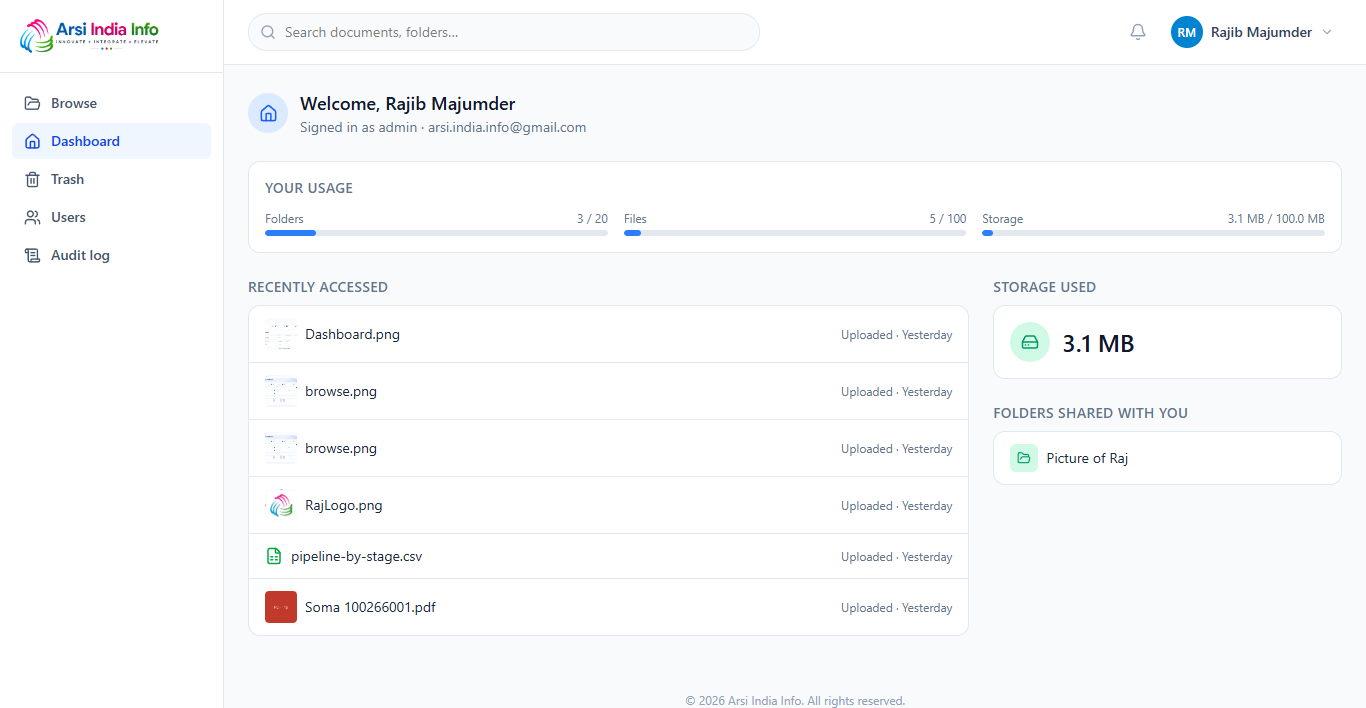
Via the API: GET/dashboard returns recentDocuments, storageUsedBytes, sharedFolders, and quotas as one payload.
15. Trash — Restore or Delete Forever
Deleting a folder or document moves it to Trash — recoverable for 30 days (§18), after which an automatic job purges it for good.
Via the Web App
- Open Trash — each row shows how many days remain before automatic purge.
- Click Restore to bring it back, or Delete permanently to purge it immediately — this is irreversible, and a confirmation dialog says so.
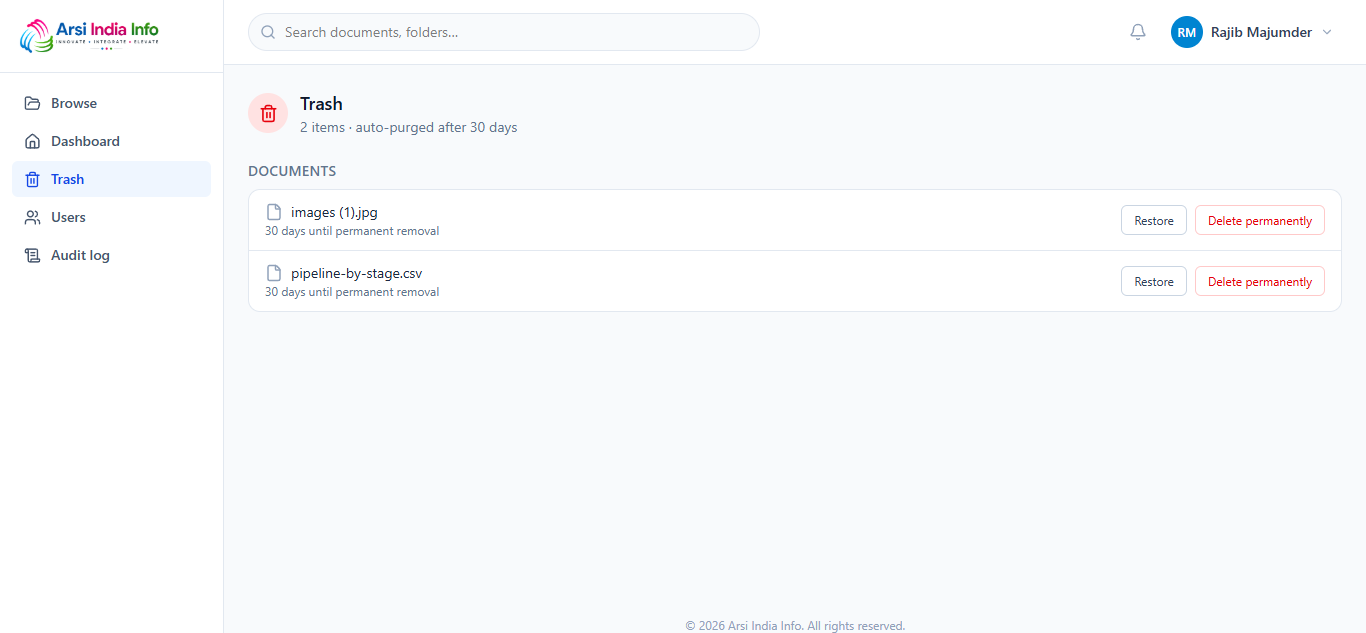
422 PARENT_FOLDER_NOT_FOUND — restore the parent first,
then the child.
Via the API: GET/trash · POST/folders/:id/restore / /documents/:id/restore · DELETE/trash/folders/:id / /trash/documents/:id — permanent, requires it to already be in Trash (409 NOT_IN_TRASH otherwise).
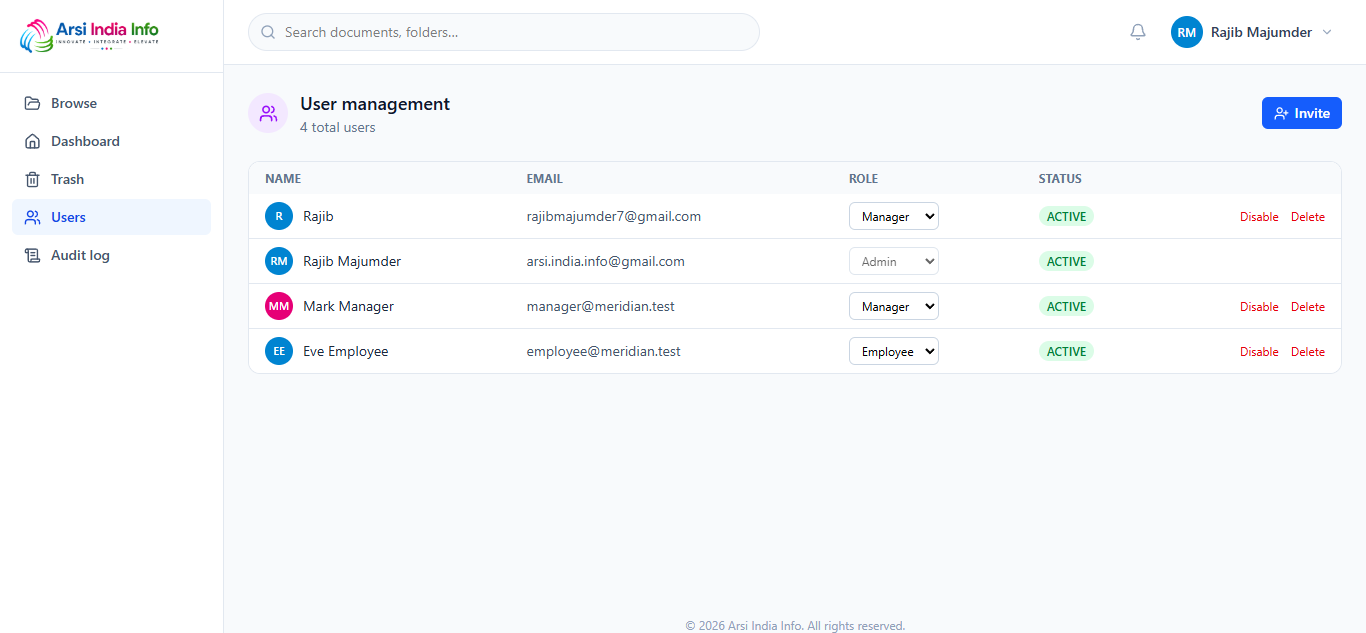
16. Admin: User Management
Sign in as an admin account (§4) to manage the team. These endpoints return 403 FORBIDDEN_ROLE for anyone else.
- Open Users — click Invite (name, email, role) to add someone directly (no self-registration needed).
- Change a user's role from the dropdown, or click Disable/Enable to toggle their access.
- Click Delete to permanently remove an account — this fails with
409 USER_HAS_CONTENTif they still own folders or documents that exist.
Via the API: POST/users · GET/users · PUT/users/:id — { role?, status? } · DELETE/users/:id — blocked for your own account, and for one protected super-admin account.
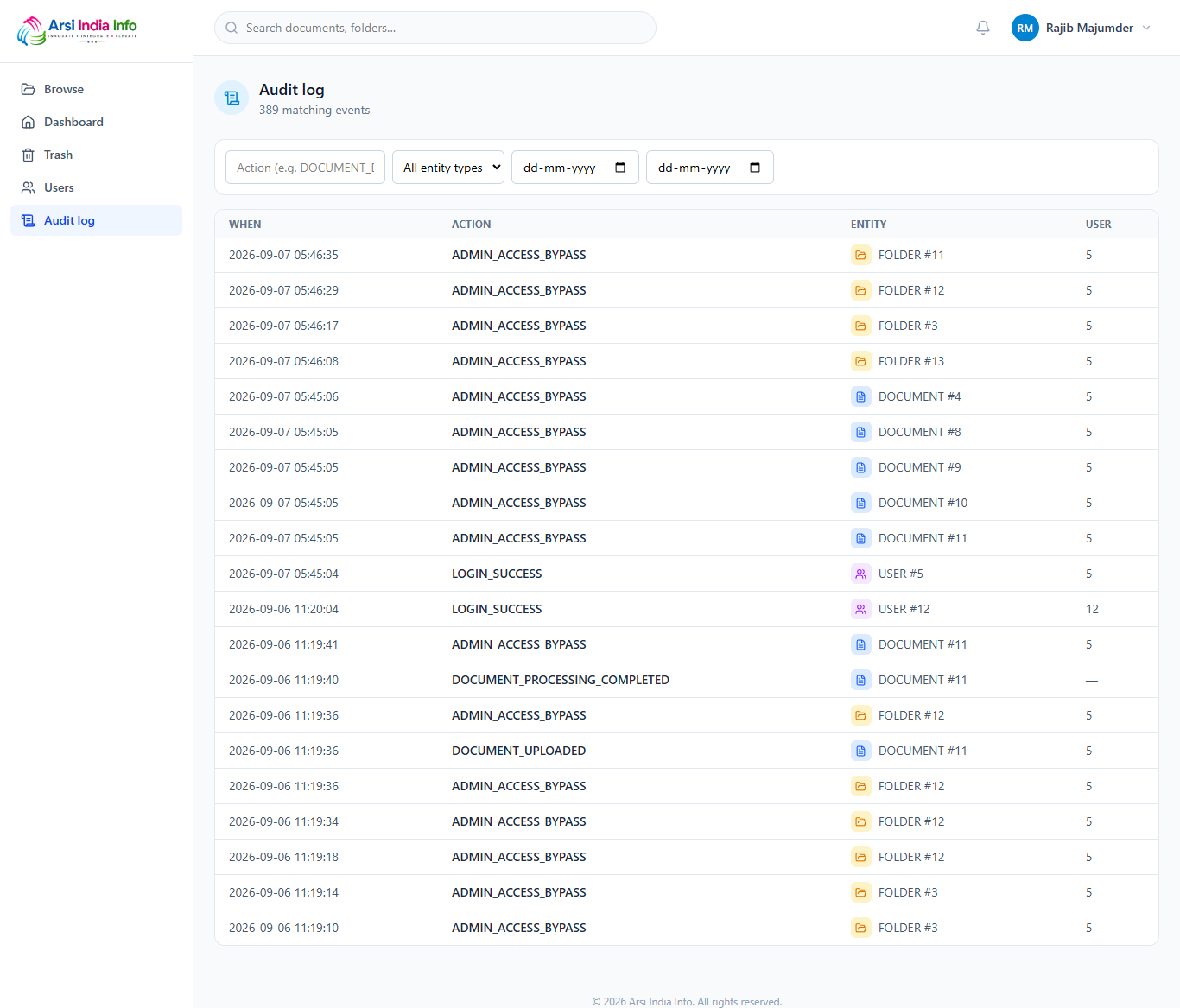
17. Admin: Audit Log
Every sensitive action — a folder created, a permission granted, a user invited, a file permanently deleted — is written to an append-only trail, automatically pruned after 3 months (§18).
Via the API: GET/audit-logs.
18. Storage Lifecycle & Automatic Cleanup
Two scheduled jobs run against this deployment without any user action:
None of this needs a click — it runs on a schedule server-side (php spark cleanup:old-files / cleanup:audit-logs).
19. Error Responses
| HTTP | Code | Meaning |
|---|---|---|
| 400 | VALIDATION_ERROR | The request body failed validation. |
| 400 | FILE_TOO_LARGE | Over the 10MB per-file limit (§11). |
| 400 | UNSUPPORTED_FILE_TYPE | Not one of the 15 allowed mime types (§11). |
| 400 | INCORRECT_PASSWORD | Wrong current password on a change-password attempt. |
| 400 | RECAPTCHA_FAILED | The reCAPTCHA check didn't pass. |
| 400 | INVALID_VERIFICATION_TOKEN | An expired/invalid email-verification token (§7). |
| 401 | UNAUTHORIZED | Missing/expired token or invalid credentials. |
| 401 | INVALID_SIGNATURE | An internal HMAC-signed request's signature didn't match. |
| 403 | FORBIDDEN_ROLE | Your account's role can't perform this action. |
| 403 | EMAIL_NOT_VERIFIED | Sign in attempted before verifying the account (§7). |
| 404 | FOLDER_NOT_FOUND / DOCUMENT_NOT_FOUND / DOCUMENT_VERSION_NOT_FOUND / USER_NOT_FOUND / SHARE_LINK_NOT_FOUND / PERMISSION_GRANT_NOT_FOUND / THUMBNAIL_NOT_READY | Doesn't exist, isn't ready yet, or you have no grant on it (§5). |
| 409 | DUPLICATE_NAME | A folder/document name that must be unique in its parent already exists. |
| 409 | FOLDER_QUOTA_EXCEEDED / FILE_QUOTA_EXCEEDED / STORAGE_QUOTA_EXCEEDED | Over one of the four limits in §14. |
| 409 | LAST_OWNER | Revoking the last remaining Owner on an item (§12). |
| 409 | NOT_IN_TRASH | Trying to permanently delete something that isn't in Trash first. |
| 409 | DOCUMENT_DELETED | Acting on a document that's already been soft-deleted. |
| 409 | USER_HAS_CONTENT | Deleting a user who still owns folders/documents that exist (§16). |
| 409 | SHARE_LINK_EXPIRED / SHARE_LINK_REVOKED / SHARE_LINK_LIMIT_REACHED | The public link is no longer valid (§12). |
| 422 | PARENT_FOLDER_NOT_FOUND | The destination/parent folder doesn't exist or is deleted (§15). |
| 422 | CYCLE_DETECTED | Moving a folder into its own descendant. |
| 429 | RATE_LIMITED | Too many login attempts — slow down and retry. |
| 500 | INTERNAL_ERROR | An unexpected server-side error. |
20. Full Endpoint Reference
All paths are relative to https://demo2.arsiindiainfo.com/api/v1.
| Method | Path | Auth | Description |
|---|---|---|---|
| POST | /auth/register | Public + reCAPTCHA | Self-register (§7) |
| POST | /auth/verify-email | Public | Activate a registered account |
| POST | /auth/login | Public + reCAPTCHA | Sign in (§6) |
| POST | /auth/refresh | Public | Exchange a refresh token for a new pair |
| POST | /auth/logout | Bearer | Revoke a refresh token |
| GET | /users/me | Bearer | Your own profile |
| PUT | /users/me/password | Bearer | Change your own password |
| GET | /users/search?q= | Bearer | Autocomplete lookup for sharing (§12) |
| GET | /users | Admin | List every user (§16) |
| POST | /users | Admin | Invite a user |
| PUT | /users/:id | Admin | Update role/status |
| DELETE | /users/:id | Admin | Permanently delete a user |
| POST | /folders | Bearer | Create a folder (§10) |
| GET | /folders/:id | Bearer | Folder detail + your effective permission |
| GET | /folders/:id/children | Bearer | List a folder's contents (or root, no id) |
| PUT | /folders/:id | Bearer | Rename/move a folder |
| DELETE | /folders/:id | Bearer | Soft-delete (§15) |
| POST | /folders/:id/restore | Bearer | Restore from Trash |
| POST | /folders/:id/permissions | Bearer (Owner) | Grant access (§12) |
| GET | /folders/:id/permissions | Bearer (Owner) | List grants |
| DELETE | /folders/:id/permissions/:userId | Bearer (Owner) | Revoke a grant |
| GET | /documents | Bearer | Search across every accessible document (§13) |
| POST | /documents/uploads/initiate | Bearer | Presigned upload URL (§11) |
| POST | /documents/uploads/complete | Bearer | Finalize an upload |
| GET | /documents/:id | Bearer | Document detail + your effective permission |
| PUT | /documents/:id | Bearer | Rename/update metadata |
| DELETE | /documents/:id | Bearer | Soft-delete (§15) |
| POST | /documents/:id/restore | Bearer | Restore from Trash |
| POST | /documents/:id/versions/initiate | Bearer | Upload a new version |
| POST | /documents/:id/versions/complete | Bearer | Finalize a new version |
| GET | /documents/:id/versions | Bearer | Version history |
| GET | /documents/:id/download | Bearer | Presigned download URL |
| GET | /documents/:id/preview | Bearer | Presigned inline-preview URL |
| GET | /documents/:id/thumbnail | Bearer | Presigned thumbnail URL |
| POST | /documents/:id/permissions | Bearer (Owner) | Grant access (§12) |
| GET | /documents/:id/permissions | Bearer (Owner) | List grants |
| DELETE | /documents/:id/permissions/:userId | Bearer (Owner) | Revoke a grant |
| POST | /documents/:id/share-links | Bearer (Owner/Editor) | Create an external link |
| GET | /documents/:id/share-links | Bearer (Owner/Editor) | List links + download counts |
| DELETE | /share-links/:id | Bearer (Owner/Editor) | Revoke a link immediately |
| GET | /s/:token | Public | Resolve a share link (§12) |
| GET | /dashboard | Bearer | Quotas, recent activity, shared folders (§14) |
| GET | /trash | Bearer | Everything in Trash (§15) |
| DELETE | /trash/folders/:id | Bearer | Permanently purge a folder |
| DELETE | /trash/documents/:id | Bearer | Permanently purge a document |
| GET | /audit-logs | Admin | Platform-wide audit trail (§17) |
21. FAQ & Troubleshooting
The reCAPTCHA checkbox won't check, or my login is rejected
Make sure third-party content isn't blocked by a privacy extension — the widget loads a script from google.com. If the checkbox works but submission still fails, the token likely expired (about two minutes); the form resets it automatically — just complete it again.
I uploaded a file and it still shows a generic icon, not a thumbnail
Thumbnails are generated asynchronously after upload — give it a few seconds and refresh. Only images and PDFs get a real thumbnail; everything else always shows its type icon by design.
I deleted a folder — is everything inside it gone?
No — deleting a folder moves it and everything inside it to Trash (§15) together, recoverable as a whole for 30 days. Nothing is actually removed until you purge it, or the automatic 30-day job does (§18).
Why did my file disappear even though I never deleted it?
The 30-day old-file cleanup job (§18) keeps only the latest 5 versions of files older than 30 days and removes the rest — you'd have received a notification when it happened. The current version is never touched.
I opened a shared link and it says it's invalid — was it ever valid?
By design this platform doesn't distinguish "expired" from "revoked" from "never existed" in most contexts (§5's guardrail) — but share links are the one exception, returning a specific reason (SHARE_LINK_EXPIRED/REVOKED/LIMIT_REACHED) since there's no ownership-privacy concern on a link someone already had.
Where do I see the full request/response schema for every field?
The interactive Swagger UI at /api/docs documents every field, validation rule, and example — it's disabled on the public demo, so run the project locally (see the repo's README) to browse it.

docs/ folder
and its README.
Source code licensed under MIT · name & logo protected under TRADEMARK.md
arsiindiainfo.com